Photo Jottings - Page 30 of 127 - Photography equipment expertise

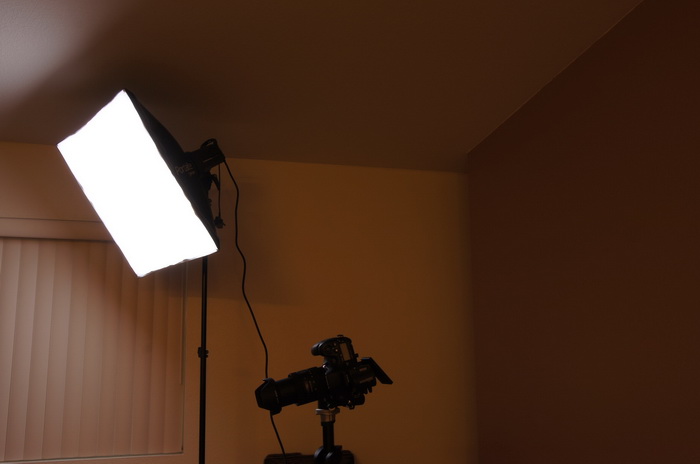
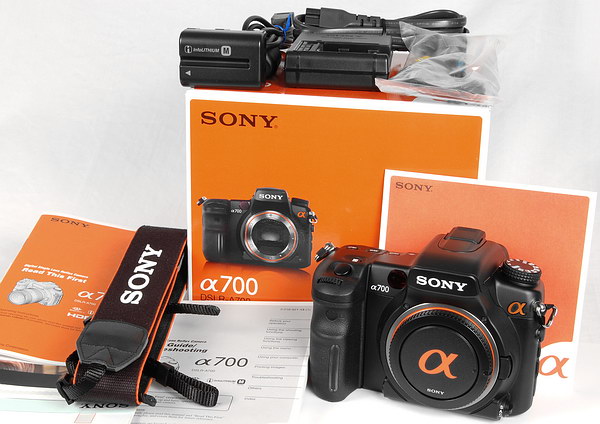
Equipment used for this article; the Sony A900 and Minolta AF 28-85mm F/3.5-4.5 lens.

Here’s a typical scene from a tourist trap destination, usually somewhere in the southern US: an older guy wearing sandals, dress socks and a Madras or Guayabera shirt, carrying around a Nikon or Leica camera outfit and taking snapshots at high noon.  After every few shots, he takes out his handkerchief or lens tissue and cleans the front element of his lens, removing all dust and any possible smudges.  Sound right?  Take a hard look next time if you don’t know what I’m talking about!  But more importantly, does this do any good?  Will dirt and dust really show up in pictures?  Is it necessary to clean minor dust and fingerprint smudges from the camera lens?

Your colorful host will unveil the truth to these questions and more using a combination of technical knowledge, downright stupidity, and some good old fashioned brute force!

Check the images and text below for results.

Let’s start off with a nice clean front element.


April2009/fetclean.jpg
Clean front element

The lens has been cleaned properly, with no smudges, dust or cleaning streaks.

April2009/fetno.jpg
Full shot with clean lens

Above is the full resized image taken with the clean lens.

April2009/fetscratch3.jpg
Two large scratches on lens, at the one o’clock, and four o’clock positions.

In this shot, notice the two large and deep scratches at the one o’clock and four o’clock positions.  The scratches could be felt by the fingers.

April2009/fetscratch.jpg
Image with scratches, not visible even at large viewing sizes.

No evidence of the front element scratches in the picture above.  Even though the image I’m showing you here is small, when enlarged, there are no signs of image degradation attributed to the scratches.

April2009/fetscratchfl.jpg
Scratches show no reflections

There doesn’t appear to be any noticeable signs of the scratches even when the sun is in the frame.  I waved the lens around in the sun at different angles, zoom lengths and apertures, and saw no signs of scratches.  I’d venture to guess that the angle and depth of the scratches may produce different results at different zoom lengths, but in my test, I saw no traces of the scratches.

April2009/fettapeft.jpg
Five spots of masking tape, plus lots of dirt and finger prints.

Now let’s get crazy and add some real dirt and dust to the front element.  In this test, I’ve added a few small bits of masking tape, threw in a handful of dust, and some fingerprint smudges to see how this would effect actual pictures.  The bits of masking tape can simulate small bugs or chunks of mud.

April2009/fettape.jpg
Image with tape on lens

There is only one area I can see that has been altered by the masking tape.  Check out the area in the middle/left of the sidewalk, by the window reflection, there’s a small, dark circular blob appearing here, not visible in other shots.  If I hadn’t pointed it out, would you have noticed?  The only way I noticed it was by flipping through the different images quickly, and looking for just this type of issue.  This image was taken at F/5.6, 28mm.  At F/3.5, 28mm,  the spot didn’t show.  If you shoot the clear blue sky at wide angle, you’ll see faint dark spots where the tape is, especially when stopped down hard.  At 85mm, the tape doesn’t show, at least with the placement of the tape as you see it.  Also remember; the front element turns when focusing so that effects the results, as the tape may show in a clear blue sky depending on the front element orientation.

To sum up the results; in regular picture taking, large blobs and a whole lot of dust on the front element aren’t noticeable.

Now let’s get super crazy with the next “messed-up” lens test!

April2009/fetbreak.jpg
Massive front element obstructions.

There’s a huge obstruction covering about half the front element, but things look ok still!  This image was taken at 28mm, F/5.6.

April2009/fetbreak85z.jpg
Contrast loss on middle/right lower image

Obvious contrast loss here, this time coming at 85mm, F/5.6.

April2009/fetbreak3.jpg
Yes, we have a problem this time!

What the crap happened here?

Even with the busted front element, the images aren’t all that bad in my opinion.  With careful framing, you could actually keep taking pictures with this lens, instead of just going home and missing out on the action, especially while on vacation.

Bad things don’t stop here, read on for more destruction!!

April2009/fetnoelem.jpg
Broken front element removed

Now the entire front element has been blown out!  This eliminates the ability of focusing beyond a few inches, but turns the lens into a good 1:2 macro or slightly larger.  The front element is clearly very important; it helps control distortion, color fringing, and makes focusing possible beyond macro range.

April2009/fetmacstamp.jpg
Full image of usual stamp shot
April2009/fetmacstamp1z.jpg
Detail of lower middle

This is a shot of the usual stamp macro.  It actually shows more detail than the original review shot with the front element intact.  The detail above comes from the bottom center-right of the full image on top.  This close focus shot is much larger than the original, but has contrast loss which makes it look not-so-sharp.  For you bargain conscious people; I’d recommend paying for a regular macro lens instead of breaking out the front element of your non-macro lens just to save money.

April2009/fetnofelem.jpg
Full macro image with broken front element removed
April2009/fetmac1.jpg
Detail of macro above.

Here is a shot of a refrigerator magnet, that should have straight lines on the sides.  This is an indication of how important the front element is for controlling distortion.  There’s massive pincushion distortion, and very soft corners present.  In the middle everything looks pretty sharp.  There’s quite a lot of color fringing present, most likely caused from the different angle of light coming in as a consequence of the loss of the front element.  Image taken at 28mm, F/5.6.

Conclusion.

Based on my un-scientific testing, I’d say there isn’t any noticeable reduction in image quality as a result of normal dirt, smudges and small scratches on the front element.  My dirt, smudges and scratches presented here are clearly more numerous and larger than what I’d consider “normal,” but as I’ve shown, they have little effect on image quality.

Finally, I bet you’re wondering why I smoked a perfectly good lens for this article.  So I’ll tell you why.  I bought this lens on eBay.  After receiving it I put it away without really looking at it.  A couple of months later I made time to review it, at which time I inspected it—oops, I got ripped off.  I noticed the filter ring was mangled up, most likely from a screw-on hood that someone got rough with.  I also noticed numerous scratches all over the body, especially underneath as it would be mounted on the camera.  Optically and mechanically it was fine.  I decided I didn’t want to try and resell it, as by disclosing all the defects, it would only bring a fraction of what I paid, less than $100.  I then remembered the habitual dirty lens cleaners I saw at a recent photo outing and at that point decided on a glorious use (and ending) for the lens.

Although this lens lost its life, it was not in vain.  I destroyed this lens so I could better understand how it worked, and the limitations of any possible amateur repair.  I like to share my knowledge so that other people won’t have to destroy their lenses only to come to the same conclusion.  I would encourage more people to consider buying lenses with front element scratches, or to keep using the lens they have with scratches, instead of putting it away, or trying to sell it.  I’ve seen great bargains out there for scratched lenses, often going for half the cost of an “unblemished” front element lens.  Before I whipped up this article, I would’ve shied away from a scratched lens, but not now.  Hopefully, with this article, I’ll save a few lenses from death, or extended the life of a few lenses with minor defects such as small front element scratches.

Go here to see the lens taken apart, and how I smashed it up due to ignorance.


Elinchrom D-Lite 4 it.

This review is for the Elinchrome D-Lite 4 IT kit, which is no longer available, but the new kit (D-Lite RX 4) appears to be basically the same.

If you’ve ever found yourself looking to get more lighting power for interior spaces, or an inexpensive but reliable system for portraits on location, the Elinchrom D-Lite 4 it now called D-lite RX 4/4 kit may be your answer.  I purchased two of these for lighting interior spaces, and found they’re actually less expensive than buying camera flashes, and much more powerful too.  This head type and kit are considered ‘Pro-sumer’ by elinchrom, meaning it’s not made to beat around all day everyday.  However, if you take care of your gear, this stuff will last a long time

Cost-wise, you’re looking at a little over $900 for the two head kit and a bunch of accessories as seen below in the picture.  To get the same power from off-camera flashes with all the stuff below it would cost you over $500 for each pro-type flash unit such as the Sony HVL-F60M or equivalent, and then you’d have to buy 9 flashes to get the approximate light power as the two 400ws heads, 9 x $500=$4500!!  Then you’d have to buy the lightstands, softboxes or umbrellas, wireless triggers and cases etc to run the cost up even more!!  The included skyport and built-in receivers are worth about $200 if you had to buy a wireless trigger system separately.

Obviously, camera flashes have their place; they’re convenient and work especially well in small spaces, but when you’re confronted with large dark spaces, or jobs that require lighting finesse, such as adding grids to better control your light, or large softbox set-ups for wrapping the light around your subject at small apertures, you’ll need some powerful strobes.

This set-up is AC powered, if you want the freedom to roam without electrical constraints, plan on spending several thousand dollars for a good unit with a battery that will last.  Based on past experiences, the batteries are the weak point in the cheap battery pack systems.  This two head kit is decent, but plan on buying a new battery or more every year, along with all the accessories.  Sometimes buying cheap stuff winds up being more expensive in the long run than good stuff.

Important info about this kit: very sensitive slave cells, will detect faint flashes even when placed in adjacent rooms, so no need to use other triggers methods; will learn camera pre-flashes, so you can sync with your camera.  The ‘it’ designation stands for intelligent triggering, meaning it can learn pre-flashes etc.  Also, works very well with Radiopoppers triggers right out of the box.  Fan cooled, and fan only comes on when firing off a lot of full power bursts.  Proportional (or on-off, hi-low) 100w modeling light.  My only complaint to date; the lowest power setting is not really low enough if the subject is close to the strobe.  Heads and available grids made in India.

Two head kit

Head only

Grid set

Grid reflector

Well, with the introduction out of the way, let’s have a look at what you get with the Elinchrom D-Lite 4 it kit.

Contents.

2012summer/ed4kit2.jpg

Starting at the top; embossed black zippered case with shoulder strap that holds the two heads; two cords, and one reflector, that’s odd they only included one reflector, but I guess they think you’re only going to use the set with the included softboxes which do not use reflectors.  In the middle are the two Manfrotto 9′ light stands (not air cushioned), and a nice padded carrying case.  Along the bottom are the mounting rings, rods, white diffusers and black with reflective silver 26″ (66cm) softboxes, each with their own carrying case.

2012summer/ed4access2.jpg

included smaller items are L-R; softbox set-up sheet: accessories available for purchase: a tube for protecting the modeling lights; I’m only showing one in the blue box, but it comes with two: the small white box and two items below it are the Skyport transmitter and battery: next is a 3.5mm sync cable.  On the bottom row is an owner’s manual, informative CD, and a quick start guide.

Technical stuff.

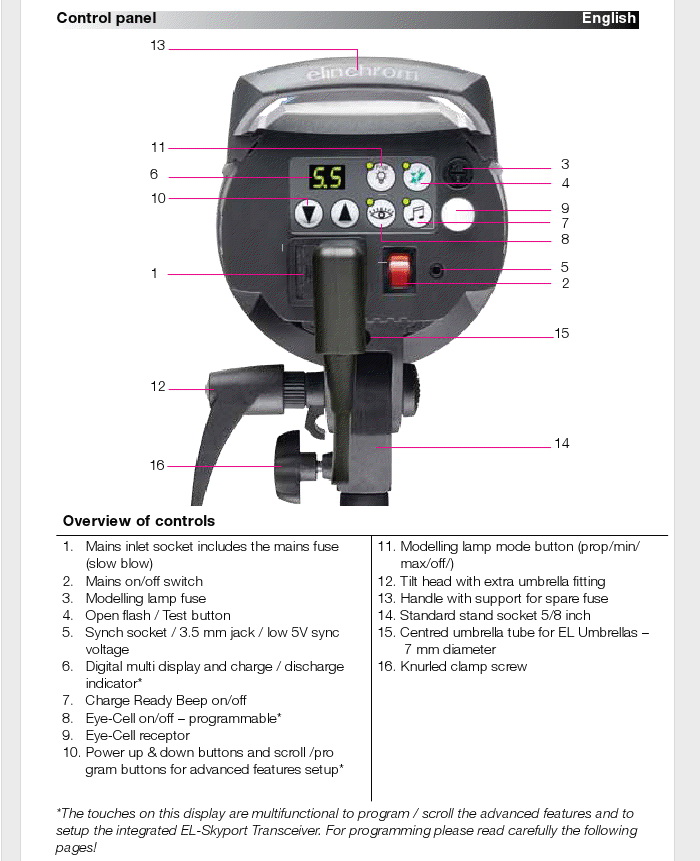
2012summer/eld4back.jpg
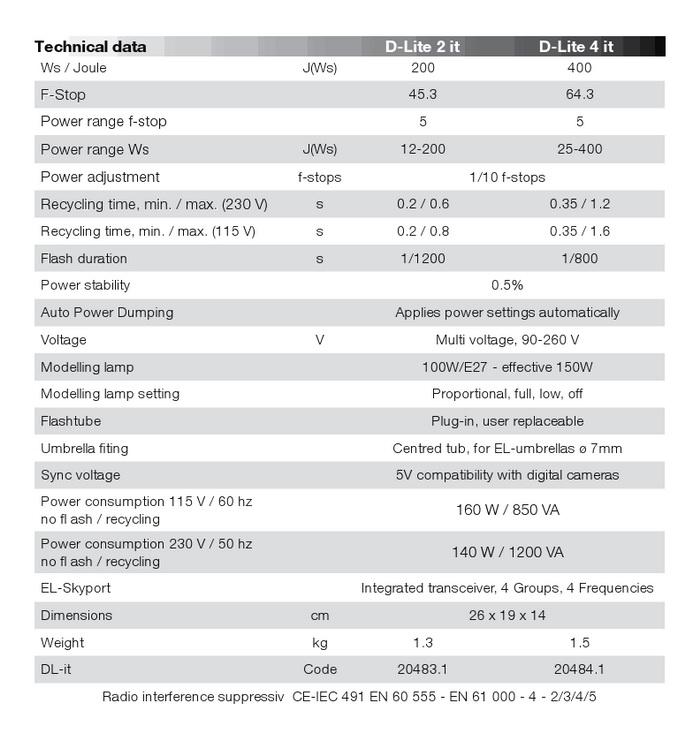
2012summer/eld4spec.jpg

Understanding the power of the 400ws head is tricky: a typical top-line off-camera flash has a guide number of 56m at ISO 100, 48°.  This 400ws head has a guide number of 296m at ISO 100, 48°, that’s just over five high power off-camera flashes!  However, the effective output on your off-camera flash can alter when zoomed or when using the wide angle diffuser, so it’s hard to directly compare.  As a result of lengthy and precise testing, I came up with 4.5 off-camera flashes to equal the light output for each 400ws head, or about 9 to equal the two heads, that’s a lot of camera flashes, and a lot of money!  Top camera flashes are usually rated around 150ws, but that’s phony, it’s probably at the max zoom setting, actual testing would suggest about 89ws.

Fully assembled.

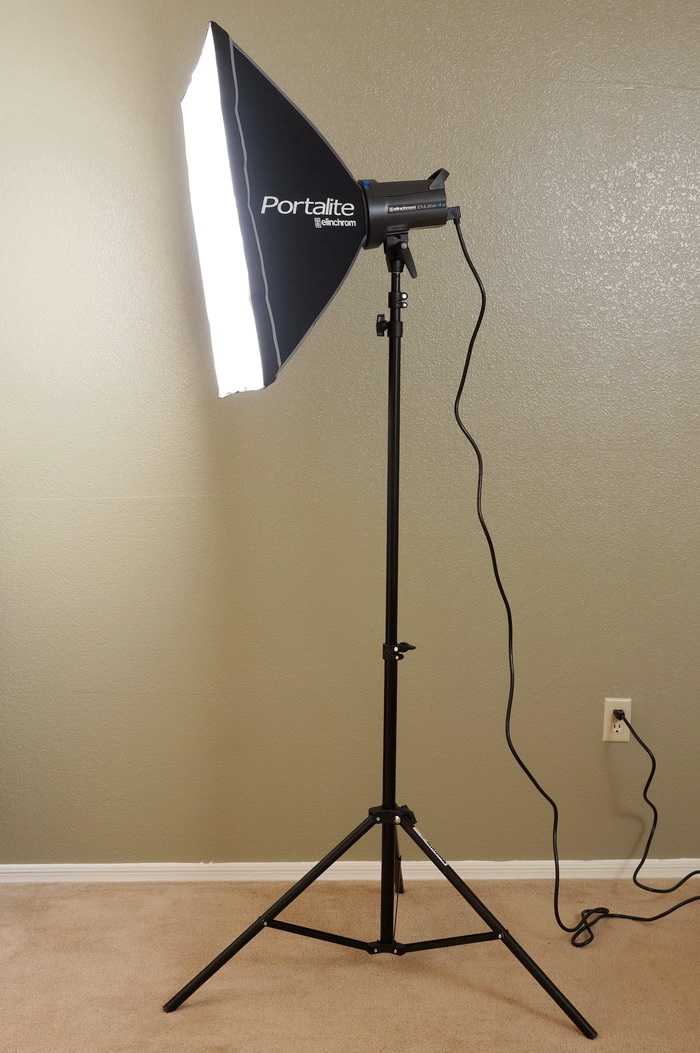
2012summer/ed4assbly2.jpg

This is one unit assembled and in working order, although the stand is not fully extended.  Note; if you buy just the strobe head, make sure you put it on a good stand that’s stable at the maximum extended height, otherwise you may wind up picking up the pieces to your new head and going home; really!  Raising a stand all the way up with a strobe like this attached can be unstable when a cheap stand is used.  Fortunately, the included stands in the kit have a little wider stance than the typical stand, and are adequate at the fully extended height when level.

Softboxes and umbrellas.

2012summer/bfbl.jpg

Shooting through an umbrella results in a loss of light as part of the light is bounced back.  Although this may help soften the light in a small room with white walls, it hurts output in a larger room, or room with dark walls.  Shooting through an umbrella makes softer shadows as opposed to turning the umbrella around and bouncing the light back towards the subject.  The example above looks like there’s a lot of light being lost behind the umbrella, but it’s really not that much, maybe a third of a stop.

2012summer/ed4bl.jpg

With a softbox, you don’t need to worry about light being lost at the sides or behind, it’s closed, so all the light is being directed forward.  Both images have the same exposure and light output for the comparison.

Power comparison.

2012summer/f14f56comop.jpg

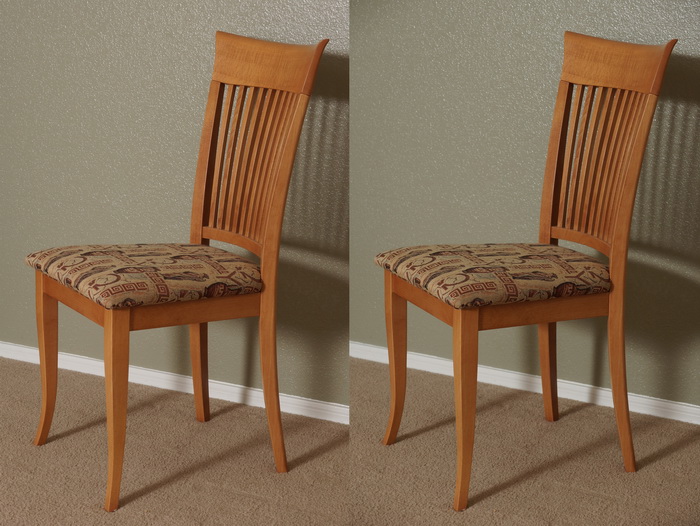
This side-by-side comparison illustrates the power differences between the 400ws strobe, and the off-camera flash.  Both are being fired through diffusers at a distance of about 16′ (5m) to the chair.  On the left is the strobe firing at full power, with the aperture set at F/14 to keep the exposure in check.  One the right, the camera flash is set to full power, but the aperture is at F/5.6, a difference of 2-2/3 stops.  I could’ve closed the aperture another 1/3 stop to better equalize the exposure; down to F/16, which is three full stops.  The 26″ (66cm) softbox of the Elinchrom is a little smoother than the 33″ umbrella, plus I like the strobe color better.  Other than the aperture, all camera settings were the same, ISO 200, 1/30sec, WB 5000k.

2012summer/ed4grid2.jpg

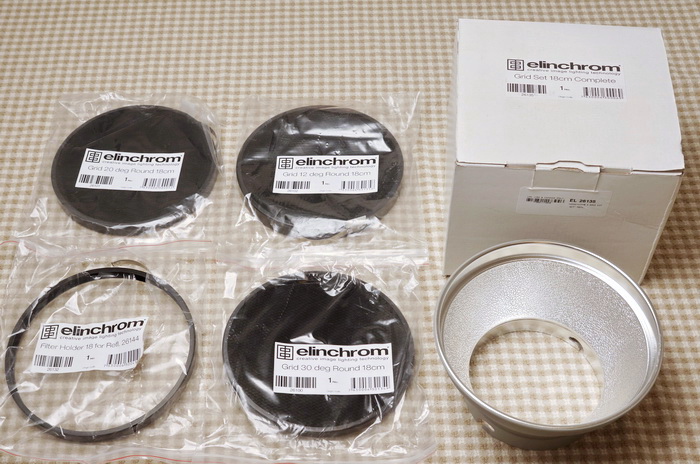
This is an optional grid package, with three grids, 12°, 20° and 30°, along with what they call a mounting ring, but you don’t need this, the grids snap in to the reflector.  The filter/mount ring may have come with the reflector in the strobe kit, I’m not sure now.  You might try the cheap Impact grid set here, and see if it fits the reflector of the Elinchrom, I don’t know if it’ll fit or not.  Check the Elinchrom grid reflector out here.

That’s it for this review, if you’d like to support the site, check out the Elinchrom D-Lite 4 it kit by using the link, thanks!

Question 1.  How can I tell if I’ll be able to use a Tele-converter on my Sony lens?

Sony only makes a few lenses that work with Sony tele-converters, and you can tell instantly if they’ll fit by looking at the rear of the lens.

Sony tele-converter compatible
Will not accept Sony tele-converters
Jan2009/70200gbkx.jpg Jan2009/s50mmbkx.jpg
The left shot shows the Sony 70-200mm F/2.8 G lens, which is one of the compatible tele-converter (TC) lenses.  See how big the opening is, and how there are no obstructions inward of the brass contacts?  Now look at the right shot of a non compatible lens, see the obvious difference, and obstructions past the contacts?  Also, if the retail price of the Sony lens is less than US $1398, it will not accept a Sony Tele-converter (as of 7/12).
There are plenty of after-market tele-converters available that will mount on any Sony or Minolta lens, unfortunately, based on my limited field use, I’d steer clear of these due to lack of sharpness and focusing problems.
Question 2.  Are polarizing filters still useful? I can make the sky a deeper blue in Photoshop.
Polarizing filters have more uses than just enhancing a blue sky.  I most often use one for mitigating reflections from rocks, glass surfaces, water, or tree leaves.  Check out the boring samples below.
Without Polarizer
With Polarizer
Jan2009/polex1a.jpg Jan2009/polex1b.jpg
Jan2009/polex2a.jpg
Jan2009/polex2b.jpg
Jan2009/polex3a.jpg
Jan2009/polex3b.jpg
Jan2009/polex5a.jpg
Jan2009/polex5b.jpg
Jan2009/polex8a.jpg
Jan2009/polex8b.jpg
Jan2009/polex8ofc.jpg
Jan2009/polex8bx.jpg

In the top row, the picture glass is reflecting outside light from the door to the left.  By turning the polarizer, you nearly eliminate those reflections.  In the second row, the sidewalk is washed out from the early afternoon sun.  In the third row, the sky is darker with the polarizer, so the palm fronds show their wispy ends, which are lost against the bright sky without the polarizer.  The next row is a general shot taken in bad, late morning light, and shows what beginners use the polarizer for.  I’d rather wait for good light, then I don’t have to worry about getting a nice, blue sky.  The second to last row shows how the harsh reflections are removed from the leaves.  The last row shows what happens when you take wide angle pictures with a polarizer, say 28mm and wider.  Only part of the sky responds to polarization, and produces a “band” effect, especially noticeable on super wide angle lenses.  I don’t like the look of polarizers in wide angle pictures.  All images are crops, except rows four and six.

The best way to learn how to use a polarizing filter is to hold it up to your eye and observe what’s happening as you rotate the filter under different lighting situations.  Experiment outside and inside.  Make sure you look through the filter as you would mount it on the lens, (or filter threads towards your eye) otherwise, it doesn’t work.

If you have a fixed lens camera with no way to attach a filter, you can still use a polarizer, simply look through the filter as you turn it to get the best effect, then hold it against the camera lens.  Or, just hold it up to the camera lens and turn it as you look at the LCD screen for changes.  Use whichever method works best for you.

Some people think they can replicate the function of a polarizing filter in Photoshop.  For the most part, this is hogwash.  You can “jack” the color of the sky in Photoshop, but you can’t replace lost information due to blown-out reflections.

For modern cameras, get a circular polarizing filter.  I’d also get a large size, say a 77mm, and buy step up rings to fit all your lenses, so you don’t have to buy a separate filter for each lens.  Make sure you don’t buy a linear polarizer, which is meant for older, manual focus and metered cameras.


Question 3.  How do I check to see if my lens has a circular aperture?  When I look in the front of the lens, I see curved blades, but your specs sheet says it has straight blades.  Are you mistaken, or just dumb?

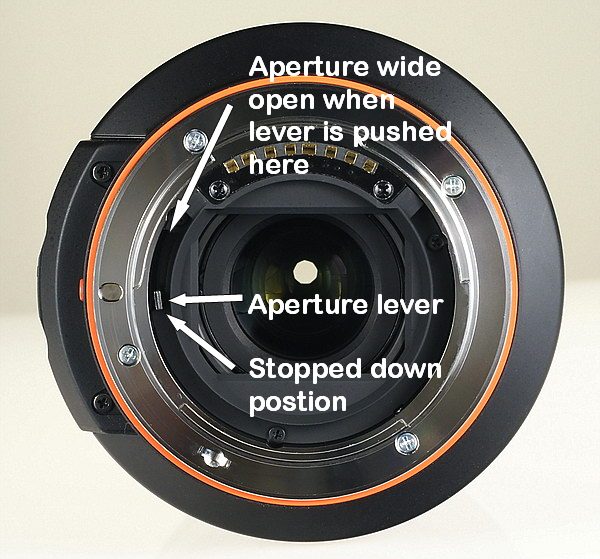
I might be dumb, but probably not mistaken.  When you look through the front of any (Sony/Minolta) un-mounted lens with the rear cap off, the aperture blades appear curved, but they may not form a circular aperture, you’ll need to check a couple of things to be able to determine this.  When you install the rear cap, the aperture will open by design, the tighter you turn the cap, the wider the aperture will open.  If the shape resembles a nice round circle when the aperture is not quite fully open, most likely you have a circular aperture.  If there’re distinct straight sides at near, or full aperture, and (for Sony) resemble the shape of a heptagon (7 sided figure), most likely you have straight blades.  You can also move the aperture lever, shown below, to open up the aperture to full, or near full, and see what shape the opening resembles.

march2009/faqaplever.jpg

The lever is recessed in the mount, and is usually not accessible with a finger.  A toothpick makes a convenient tool, and is soft, so you won’t scratch anything.

If you’re still not sure about the shape of the opening, here’s one more way to check.  Mount the lens on the camera, turn it on, and look through the front of the lens as you stop down.  Make sure you have sufficient light to see inside, and maybe a magnifying glass to make things a little easier to see.  On zoom lenses, use the longest zoom setting, which makes seeing the aperture easier.  Also, you’ll need a depth of field preview button, not available on all cameras.  Simply stop down one stop, and push the DOF button and look at the shape of the aperture.  Try it again at two stops down, and see what the shape is.  If you have an F/2.8 lens, stop down to F/4 and F/5.6, etc.  Most circular apertures will remain nearly a circle at two stops down.  Straight blades will show up at one stop down.  When the aperture is all the way open, you really can’t tell what you have, that’s why it’s important to close the aperture slightly.  If you’re really coordinated, you can hold the DOF button in, while you move the aperture control dial, and see what happens in 1/3, or 1/2 stop increments.

         Lens 1.  F/4, wide open
     Lens 1.   F/5.6, seven straight blades
Jan2009/casmopen.jpg Jan2009/casm56.jpg
         Lens 2.  F/2.8, wide open
Lens 2.  F/5.6, nine curved blades, circular aperture
Jan2009/casgopen.jpg
Jan2009/casg56.jpg
Lens 3.  Stopped down one stop to F/2.0, curved blades, circular aperture
Lens 3.  F/2.8, losing the circular aperture due to seven blades
Jan2009/cass5020.jpg
Jan2009/cass5028.jpg

Notice the lenses look the same when wide open, though I showed the last lens one stop down to save space.  Lens 1 (Minolta 70-210mm F/4) shows the aperture to be a shape of a heptagon, or seven sided figure one stop down.  Lens 2 (Sony 70-200mm F/2.8) has nine curved blades, and shows a circular aperture, even two stops down.  Lens 3 (Sony 50mm F/1.4) has seven curved blades, and only shows a circular aperture one top down, if it had nine curved blades, it would probably be circular at F/2.8.

The “Flashes etc” page contains links to reviews for all items related to flash photography, such as flash units, reflectors, snoots, umbrellas, grids, stands, off-camera triggers and more.


This is a quick review of the Minolta Program 5400HS flash unit that first came out in 1993.  It was Minolta’s top-line flash at the time, until about 2000 when it was replaced by the Minolta 5600HS.
This very inexpensive flash is great if you need raw power, and don’t require automated controls.
Check prices on eBay
2014/lp180boxsm.jpg
The lumopro 180LP is highly touted by the ‘strobist‘ and works great if you don’t use a flash very much.  I have three, and two went bad after a few months.  Buyer beware.
More info;  amazon link
summer2013/yn560IIboxsm.jpg
The Yongnuo YN560-II is a high output flash with plenty of power levels and very fast recharge rates.  Comes with a plug for an external battery pack, plus a PC port!  Unfortunately, as with all aftermarket flashes I’ve tested, this one suffers from multiple issues.
I tested the newer YN560-III, and it lasted about one week longer than the earlier model.
More info;  amazon link
summer2013/hvlf60mboxsm.jpg
The HVL-F60M is Sony’s top-line flash unit, replacing the HVL-F58AM in 2012.    This is a first rate flash, including build quality, output and power settings.  However, it would have been nice to see a stereo or PC connection for remote operation, (as opposed to the wireless system); I’m sure this is coming though, direct from Sony using Sony triggers.  Works with Radiopoppers™ flash triggers, although you still need a hotshoe adapter with an appropriate plug.
More info;  Sony HVL-F60M.
2012summer/ed4kit2sm.jpg
If you’ve ever found yourself looking to get more lighting power for interior spaces, or an inexpensive but reliable system for portraits on location, the Elinchrom D-4 Lite it kit may be your answer.  I purchased two of these for lighting interior spaces, and found they’re actually less expensive than buying camera flashes, and much more powerful too.
More info;  Elinchrom D-Lite 4 It kit no longer available, but this one is very similar: Elinchrome D-Lite RX 4.
endof2011/f58boxsm.jpg
The HVL-F58AM is Sony’s top-line flash unit.  It’s very similar to the less expensive HVL-F43AM model, but has plugs for an external battery and Sony off-camera cables, (studio use) and of course, the ability to act as a control flash for Sony’s wireless system.  Works with Radiopoppers™ flash triggers.
More info;  Sony HVL-F58AM, now discontinued and replaced by the Sony HVL-F60M.
endof2011/sonyf43backsm.jpg
Check out Sony’s best flash value, the HVL-F43AM.  This flash has a whopping 22 power levels, along with a fast recharge rate, modeling and multi-flash emission, plus, the ability to act as a control flash for Sony’s wireless system.  It does almost everything the more expensive HVL-F58AM does, but at a much lower price.  Works with Radiopoppers™ flash triggers.
More info;  Sony HVL-F43AM
JUNE2011/f56amboxsm.jpg
The Sony HVL-F56AM is no longer available, it’s been replaced by the HVL-F58AM since 2008.  The HVL-F56AM is a feature-rich flash with plenty of custom functions, including modeling and multi-flash, a plug for an external battery pack, a cable socket for Sony off-camera flash control, and of course it works perfectly with Sony cameras, even though it was designed by Minolta in 2000.  It also work very well with Radiopoppers.
endof2011/vebbmntoo.jpg
Visual Echoes makes a slick, but odd looking devise that extends the working range of your accessory flash unit via a “Fresnel screen” placed at a fixed distance from the flash head.  Although the “Fresnel screen” is made from flimsy plastic, it really does work, but there are some limitations you should know about.  Try the fresnel lens with a flash light instead of the camera flash, you can really see the difference as you point it around the room!


More info; Visual echos Better Beamer flash X-tender     Better beamer review

JUNE2011/rogue3-1boxzhpsm.jpg
Rogue makes some pretty neat products, most of which are actually useful for the average photographer.  The Rogue 3 in 1 honeycomb grid is designed to fit over a standard camera accessory flash unit, and provides a way to control the coverage of light that falls on the subject.  Grids are better than snoots, although the difference is sometimes subtle.


More info; Rogue 3 in 1 Honeycomb grid

JUNE2011/sonyf42amkit2.jpg
The Sony HVL-F42AM is no longer available new, which is too bad, because it’s feature-rich with plenty of custom functions, and of course works perfectly with Sony cameras.  It has a fast full power recycle time of about 3 seconds, and at half power is almost instant!  They’re commonly available on eBay, and if you can get a good copy for less than $150 it’s a steal.  They also work well with Radiopoppers™ although you have to go through a power-up procedure before using.   The HVL-F42AMwas the first Sony designed alpha flash unit, the other two (HVL-F36AM and HVL-F56AM) were rebadged Minoltas.
JUNE2011/flsbendergflshpsm.jpg
Check out a quick review of the Rogue Flashbender large reflector, and Gary Fong Lightsphere.  Both do an excellent job of diffusing external camera flash light, with the Flashbender doubling as a snoot.  Photo samples of both products in use and results comparison.


More info; Rogue Flashbender, large      Gary Fong lightsphere

JUNE2011/sunpz42xboxsm.jpg
The Sunpak PZ42X S is a poor choice for fully automatic flash use on newer Sony cameras.  The flash defaults to full power blasts in live-view mode, so you have to use an optical viewfinder camera to get proper exposures.  This model doesn’t seem to be compatible with Radiopoppers™ flash triggers.  Works well on older Sony and Konica Minolta digital SLR’s.


More info; Sunpak PZ42X S

JUNE2011/viv293finsm.jpg
The Vivitar DF-293 is a very economical flash for off-camera or manual use because of the adjustable zoom and power levels.  Works well with Radiopoppers™.  Not great for full auto use as you must remember to manually adjust the zoom feature when changing focal lengths.  I no longer recommend this flash as it seems to have reliability issues.


More info; Vivitar DF-293-SON

JUNE2011/transadptcx.jpg
To learn how to use your flashes with radio controlled triggers, check out the Sony and Minolta off-camera flash page.  This page is mainly for people wanting information concerning Sony and Minolta AF flashes and radio controlled use with Radiopoppers™.  Also has info on using gels, stands and umbrellas, and how to mount your flashes to a stand.


In late 2005, Konica Minolta announced they would be selling off their photo imaging department to Sony Corp.  This camera is no longer in production, but all lenses and accessories from Konica Minolta will work with the new Sony a 100 DSLR.
The Maxxum 5D is Konica Minolta’s entry level D-SLR, featuring an anti-shake system that’s built into the camera body, so every lens has the equivalent of image stabilization!  If you’re a Minolta film camera owner with a few AF lenses sitting about, rest assured nearly all will work just fine on the Maxxum 5D 6.1MP digital camera.
It’s a tough market out there, with new D-SLR’s coming out at a record pace.  Can Konica Minolta’s latest addition pounce over the competition?
Note: In some countries the Maxxum 5D is known as the Dynax 5D.
I bought the “kit” which includes the AF DT 18-70mm lens for $854 + tax on 11/05.  Here’s what I received.
  • The 6.1 megapixel Konica Minolta Maxxum 5D body
  • 18mm-70mm AF DT F/3.5-5.6 kit lens
  • A nice quality camera strap
  • NP-400 lithium rechargeable battery
  • BC-400 battery charger
  • VC-500 video cable
  • USB cable
  • Printed manual, both English and Spanish included.
  • CD-ROM software, DiMAGE master lite vs 1.0.1 and Kodak easyshare
You have just about everything you need in the box to begin taking pictures except a memory card.  Since this camera uses compactflash cards, that’s what you’ll need to buy.  I bought a 512mb card which yields 81 shots at the extra fine large setting, 160 at large fine and 272 shots at the large standard setting.  RAW + JPEG equals just 39 pictures.  Do note when inserting the memory card, you will need to keep the back side towards the back of the camera.  The front of the card has the large print with the capacity and makers name, it will only go in one way, so don’t try to force it.  Believe it or not some reviewers show the card half way in the slot but in the wrong way!
Before you begin your photo excursion, you’ll need to charge the lithium-ion battery, which under normal circumstances will take approximately 2.5 hours.  The company claims you can take up to 500 pictures on one charge, and I can verify that from use.
There are some accessories you might want to check out, most notable are lenses.  I’ve tested all the AF DT lenses to date, plus a few more so be sure and read the reviews.  Don’t forget; all your old Minolta AF lenses will work too!

There are several separate flash units available, if you need something extra besides the built in pop up flash.  This camera supports high speed sync with certain flashes; the 3600HS (D) and 5600HS (D) you can buy two different ring flashes for macro work.

Other items include an A/C adapter, the standard carrying cases, and two remote control cords, one at 18″ long and another at 15 feet.  No option for a wireless remote.

The software supplied with the camera is DiMAGE master lite vs 1.0.1, which provides everything you need for this camera, including RAW editing.  On the main screen you’ll find thumbnail views, a “folder tree,” a histogram or preview, then EXIF data with basic info or detailed info.  In detailed info you get every detail you can think of, including the lens used and color temperature.  I was quite surprised at seeing the color temp listed on a JPEG image, plus the added luxury of knowing what lens you used without having to shoot in RAW.  Speaking of RAW, I’m not overly thrilled with the editing capabilities of master lite.  You get the basic features only, which kind of defeats the purpose of shooting in RAW.  DiMAGE master lite vs 1.0.1 is ok, but nothing special.

Specification sheet here

So enough with the introduction, let’s take a look at the Konica Minolta Maxxum 5D!

Aug08/kmfrontlens2.jpg
This is a fairly typical D-SLR camera these days; a black colored body with a large right hand grip, metal frame encapsulated in plastic with fold away flash that’s mounted flush to the body.  It looks and feels well built, and of average weight.
In the upper left of the photo you will see the self-timer lamp indicator, which only works in the 10 second mode.  Below that and to the right is the stylish anti-shake logo which they hope will bring attention to the main selling point of the camera.  Just to the right of the lens mount is the depth of field button.  Push this while looking through the view finder to see how deep the focus is, make sure the camera is on of course as it operates the aperture.  You’ll note it may look very dark, and it will be a pain to actually determine the depth of field, especially at high F-numbers, which will allow only a small amount of light in, such is the nature of the universe.  On the very right side of the picture, next to the lens mount, is the lens release.  Don’t forget to note the nice blue Konica Minolta logo and company names!
Aug08/konicaminoltafrontflash2.jpg
Between the front view and top view, I’ll explain the built in flash.  This flash must be manually raised, even for the AF assist function.  The flash guide number is 12 (in meters at ISO 100) with a sync at 1/125s with anti-shake on, or 1/160s with anti-shake off.  With the available high speed sync flash units, you can set any shutter speed, and you can even take photos with the flash dismounted, wireless!
There are four basic flash modes for the 5D.  Fill flash, which supplements ambient light sources; this is good for reducing shadows.  Red eye reduction mode fires pre-flashes before the main flash to contract the pupils in the subject’s eyes, thus preventing red eyes!  Rear sync flash is used to highlight trailing marks such as car lights or subject movement.  It gives a feeling of motion.  The fourth and final flash mode is wireless/remote flash which allows the camera to control an off camera flash unit without the need of cables.
The AF illuminator, or more commonly called “AF assist” is used to help the camera focus in low light conditions.  If the camera hunts for the correct focus, usually in a dark room or outside at night, simply raise the flash unit and allow the camera to fire a few short bursts to provide light to focus correctly.  The flash will always fire if in the up position, to eliminate this, simply lower the flash after the bursts and the focus locks.
Be advised when using the Konica Minolta AF DT 11-18mm wide angle zoom lens with the flash, you will only be able to cover the 18mm length, as this is all the area the flash covers.
You can also compensate the flash, -2.0 EV to +2.0 Ev in 1/3 Ev increments.
Aug08/konicaminoltatop2.jpg
As you can see here, things are clean and simple on the top.  On the left, is the white balance dial.  In the middle of that dial is the white balance button.  So what is white balance and what’s it about?
  White balance is the camera’s ability to make different types of lighting appear natural.  If you take a picture of a white wall, it should appear white, not beige or tan.  When taking a picture of a person under fluorescent lights, the person should not look like they have a greenish cast.  All this is taken care of with this small dial.
The white balance dial has four settings.
  • AWB – white balance is set automatically.
  • Preset white balance – set the white balance to a specific lighting source.
  • Custom white balance – calibrate the camera to a specific lighting situation.
  • Color temperature – set the white balance to a specific color temperature

You press the button in the middle to change the four white balance settings.

In the AWB position, the camera detects the type of light and adjusts the white balance accordingly.  When using the flash, the camera uses the color temperature of the flash for best results.

In the preset white balance mode, there are six lighting situations you are likely to come across.

  • Daylight, for outdoor sunny subjects.
  • Shade, used for skylight and shady conditions on a clear day.
  • Cloudy, for cloudy or overcast outdoor subjects.
  • Tungsten, for incandescent lights; household filament light bulbs.
  • Fluorescent, for fluorescent lighting such as office ceiling lights.
  • Flash, for electronic flash.

When using these six preset options, you can also adjust the white balance in seven levels: +3 to -3, and +4 to -2 for fluorescent.

Custom white balance allows the camera to be calibrated to a specific lighting situation as stated earlier.  This is done by taking a picture of a white or gray card within the camera’s metering area.

Color temperature refers to the light emitted from a blackbody radiator at a specific temperature given in degrees Kelvin.  So if you know the color temperature of the light source that is present in your surroundings, you set that temperature using the meter that comes up on the camera’s monitor after pressing the button in the white balance dial.  The range is 2500K – 9900K and of course you also have the Magenta/green compensation scale which is used for discontinuous – spectrum light sources, especially fluorescent.  White balance bracketing is also possible, with a low scale and high scale mired shift

Next up is the flush mounted flash unit.  By grabbing the two tabs located on each side, you raise it up manually.  In the middle of the flash unit is the accessory shoe or “hot shoe.”  This is where you attach a flash when the built-in flash won’t do.  Keep in mind on this camera you don’t have to keep the flash unit attached, you can take it off and place it in a more effective position. In the picture, the cap is on the hot shoe, this is where you want it to stay unless you’re using a flash.
Below and to the right of the accessory shoe is the diopter – adjustment dial.  This is used to correct eye sight problems.  The adjustment range is -2.5 +1.0.  Use this to sharpen up the viewfinder focus frame.
To the right of the flash, and probably the most used, is the exposure mode dial.  You’ll find five exposure control modes and five digital subject programs.
  • Auto, auto recording
  • P, program exposure
  • A, aperture priority
  • S, shutter priority
  • M, manual exposure
  • Portrait
  • Sports action
  • Landscape
  • Sunset
  • Night portrait

Auto recording is used when you want fully automatic exposures.  Be aware this setting will choose which ISO to use, possibly at a price of extra noise in your pictures.

Program exposure mode works similarly to auto, but in this mode the settings do not change, or go back to default.  If you set the ISO to 100, that’s where it will stay.  If you want to compensate exposures manually, by using program shift on the control dial, you can.  I find this setting to be one of the most useful.

Aperture priority.  You set the aperture manually, the camera sets the appropriate shutter speed.  This will be the most useful for people who are concerned about lens sharpness issues at certain aperture settings.

Shutter priority.  You set the shutter speed, the camera picks the best aperture.

Manual exposure.  Just as it states; you have complete control over the exposure.

The digital subject programs optimize the camera’s exposure, white balance and image processing systems for specific conditions and subjects.

Let’s look to the top right of the Konica Minolta Maxxum 5D, the first dial on the handgrip.  This is called the control dial.  It’s used to adjust the exposure in program shift mode or shutter and aperture values in those modes.  Additionally, it’s used for maneuvering through the settings on the LCD monitor.  You’ll use this dial a lot!

Below the control dial is the most important button; the shutter release.  Use this to autofocus at the half way point, and release the shutter fully depressed.

Next on down the handgrip is the drive mode button.  The drive modes control the rate and method of image capture.  There are four basic drive modes.

  • Single-frame and continuous advance; to take single or multiple images at one time.
  • Self-timer; to delay the release of the shutter by 10 or 2 seconds.
  • Exposure bracketing; to take a series of 3 images with differing exposures.
  • White balance bracketing; to make 3 images with differing white balance from a single exposure.

The last button we’ll look at on top is the ISO button; or camera sensitivity button.  The options are; Low80, for low key scenes, 100, 200, hi200 for high key scenes, 400, 800, 1600 and 3200.  As you increase the setting from 100 to 200 etc, you double the sensitivity, a change of one exposure value, great for keeping the shutter speeds up to try and eliminate blur, of course that’s in addition to the anti-shake.

kmcardslot.jpg
 The right handgrip area covers the card slot door.  You should take note of the card orientation in the picture; this is the correct way to insert the card, not with the front showing as I’ve seen in a couple of reviews.  The Konica Minolta Maxxum 5D accepts CompactFlash type I and II, plus microdrives.   Also inside the door you will find the video out/USB connector.  The button to release the card is directly above the slot, push it in and the button will pop out a ways, then push it back in to pop out the card.   Make sure you keep this button pushed in at all times, even when no card is in the slot.  If you don’t, you won’t be able to close the card door, or you may damage the button and door in a worse case scenario.
kmleftremote.jpg
 On the left side of the camera you’ll find the remote control terminal.  In the picture I have a remote cable attached; notice how the plug extends out to the front of the camera.  It will only go in one way.  For Minolta owners; the remote cord you bought three decades ago will work perfectly on the new Konica Minolta Maxxum 5D!
Also located on the left side is the auto/manual focus switch.  This allows you to manually focus your autofocus lens if the need arises.
kmbottom.jpg
 The battery compartment is located on the underside of the camera, as is the tripod mounting socket.  The battery compartment cover is hinged and spring loaded.  After opening, you’ll find another holder, this time for the battery itself.
kmback.jpg
 As you can see, the rear view shows nine buttons, an optical viewfinder, an LCD monitor, a DC-in port, an access lamp and a four way controller.  Starting off on the left, is the power switch, used to turn the camera on and off, this happens in just over a second, which is pretty quick.
Next on down is the Menu button.  Here you will find a custom menu and a set-up menu.  The custom menu controls operation preferences like monitor display, shutter lock, recording and playback.  The set-up menu controls camera operations, such as LCD brightness, language, date and time, transferring images and folders.  Here you can also delete everything on your memory card or format the card.
The next button down is used to control the LCD display; use it to switch the monitor display between full, basic and off.  Full mode gives everything you need for normal photographic situations, basic is just that, only minimal info.  Off mode can be used to save on battery power.  You can also change the playback display for viewing four, nine or sixteen images all at once on the monitor.
The button with a trash can is used for deleting images.  You can delete the picture you just took, and others, one at a time.  For deleting more at one time, see the menu button.
The last button on the left side of the camera is for playback.  This feature allows you to view the pictures you just took.  By using the four-way controller, you can bring up the histogram display to get specifics on the image.
The Konica Minolta Maxxum 5D uses an eye-level fixed roof mirror optical viewfinder, which covers 95% of the actual image produced.  Magnification is 0.83x.  As you sight through the viewfinder, you’ll notice at the bottom–a strip of information–with green digits. Information includes AE lock, focus signal, shutter speed, aperture, Ev scale, frames remaining, camera shake warning and anti-shake scale which has five bars, the higher the number of bars showing, the more you are shaking the camera and the greater the chance of a poor image.  Also notice just below the viewfinder, you’ll see the sensor for shutting off the LCD when you put your eye or face up to it, or when it’s up against your shirt.
The LCD is 2.5″ with 115,000 pixels.  It’s bright and fairly easy to see outside in sunlight, though looking down at an angle it appears washed out.  On a final note, the LCD will rotate along with the camera when shooting in the vertical position.
lcd1.JPG
full display view
lcd3JPG.jpg
basic display view
To the bottom right of the screen you’ll notice the DC port.  This is used to power the camera with A/C household current using the AC adapter.  You will need to purchase this item as it doesn’t come with the camera.
Moving up to the top again, to the right of the optical viewfinder is the “Fn” or function button.  This is an important button as the AF area, focus mode, metering mode, flash compensation, color mode and digital effects control are all set here.
  • AF area controls which AF areas are used for focus.  Wide AF area, when you want the entire frame in focus.  Spot AF area, for getting the focus for a single point, and focus area selection, which the operator can select manually with the four-way controller.
  • AF mode includes single shot AF, a general purpose mode, Automatic, which switches between single shot AF and continuous AF depending on the subjects motion.  Continuous, used for photographing moving subjects.  Direct manual focus is similar to the automatic mode, only after the camera locks focus, the focus can then be manually adjusted.
  • Metering modes.  Multi-segment is the camera’s standard metering mode, appropriate for most situations.  Center weighted measures light values over the entire image area with emphasis on the center area.  Spot metering uses a circular area within the center of the image to calculate the exposure.
  • Flash compensation.  The relative output of the flash can be compensated by -2.0 to +2.0 Ev.
  • Color mode.  There are 10 modes which can control what the image looks like.  Natural color, Natural plus, Portrait, Landscape, Sunset, Nightview, Night portrait, Black and white, Adobe RBG and Embedded Adobe RGB.  The last two are used for printing.
  •  Digital effects control (DEC) include adjustments to contrast, color saturation and sharpness.  I think the sharpness would be the most useful out of the three.


Right next to the “Fn” button is the Exposure compensation (AV) button.  When using the Auto, P, A and S exposure modes or a digital subject program, the exposure can be compensated.  To do this press and hold the AV button and turn the control dial.  The degree of compensation is displayed on the monitor and in the viewfinder scale.  The range is -2.0 to +2.0 in 1/3 Ev increments.  Digital Effects control limits are -2 to +2 in 1 mark increments, here you only need to press the four-way controller.
Last along the top row is the AE lock-slow sync button.  This locks the automatic exposure system without activating the AF system.
Just below this button you’ll see a small clear plastic spot.  This is the access lamp.  Never remove a memory card or attached cable while the lamp is flashing red!
Moving on down, you see the controller and spot AF button.  The controller is used as a way to maneuver through the menu item, up, down, right and left.  In the middle is the spot AF button.  Push in and hold to lock the focus.
Last, but not least we have the anti-shake switch.  A most important item as it is the main selling point of the camera, in my opinion.  Konica Minolta’s anti-shake system minimizes the affect of camera shake by moving the CCD sensor inside the body of the camera.  There’s no image stabilized lenses to buy, which adds up to a huge savings if you collect a few lenses, or you already own a few old AF Minolta lenses.
A person may ask if the system really works.  I’ll show you if it works.  My test shots consisted of five shots in a row of a subject, locked exposure at 1/15 second, with anti-shake on, and five shot in a row of the same subject, at the same distance and same exposure, with anti-shake off.  In this case, after my tests, all five shots with anti-shake on were acceptably sharp, and with anti-shake off, only one was acceptably sharp.  Check out the cropped photos.
antishakeoff.JPG
anti-shake off
.
antishakeon.JPG
anti-shake on
I think the anti-shake system worked as advertised.  As I said earlier in the review, keep an eye out for the anti-shake bars to start building, if there’re five bars you’ll want to either get out a tripod, in which case you’ll turn off anti-shake, or try for a faster shutter speed to avoid blurry photos.  The system won’t stop moving objects of course, only a fast shutter will do that job.  Anti-shake won’t work miracles; the purpose is to reduce the affects of camera shake.
Let’s talk about the camera performance.
As stated earlier, the camera starts up in a little over a second, not bad, about average.
Shutter lag is no problem, as it shouldn’t be on a D-SLR.
I haven’t said much about lenses, as it’s up to you to buy whatever you want.  I have a build quality issue with the kit lens though.  At or near full zoom, the lens barrel has a wobble; you’ll notice it while the lens is focusing.  I don’t think there is an optical quality problem; it’s just something that’s annoying.
Shot to shot speeds are good, firing off a quick 4-5 shots, then slowing to a second or more between shots in the extra fine large JPEG setting.  I averaged 5-6 shots in about 6 seconds, then slowing a bit to a total of 11 shots in 10 seconds.
Red eye did not show up in tests, even when the red eye reduction flash was not used.
The camera’s exposure levels are generally right on, but I have noticed some issues.  Once in a while you’ll get an under-exposed shot, maybe a half to a whole stop, even when the framing has not changed.  This happens occasionally, not often.  Make sure you review your pictures; you can usually tell by looking at the LCD if the exposure is off more than a half stop or more.
There are three resolution settings, large, medium and small.  In each setting you’ll get three choices for quality; extra fine, fine and standard.  You also get the RAW setting and RAW+JPEG, with the JPEG saved in the large/fine setting.  I find the large, extra fine JPEG setting to be the one I use the most, but I really can’t tell the difference between that setting and the large fine, at any screen size.
Next up is the exciting still life studio shot.
Click on the image to view a full size shot.  This still life was taken at F/8, ISO 100 at the highest JPEG setting with the Konica Minolta AF DT 18-70mm kit lens.  All digital effects controls were at their default settings.
The image shows nice, saturated colors which most people like now days, I think it’s about right, but I wouldn’t want to use the natural plus setting.
The 18-70mm kit lens shows pretty sharp in the center of the frame, but softens up in the corners.  At F/8 it looks quite a bit sharper in the corners but not much better in the center.  See my review of this lens.
Next we have a series of ISO tests for your pleasure.
kmisotest1000.JPG
ISO 100
kmisotest2000.JPG
ISO 200
kmisotest4000.JPG
ISO 400
kmisotest8000.JPG
ISO 800
kmisotest1600.JPG
ISO 1600
kmisotest3200.JPG
ISO 3200
As you can see, things look great all the way through 800, at 1600 things start to deteriorate, but it’s still very good, and by 3200, you’ve got a decent 4″x 6″ print.  Notice the contrast and color saturation held together all the way to 3200.
 The Konica Minolta Maxxum 5D 6.1MP camera is the little brother to the Maxxum 7D.  In some ways, it exceeds the 7D, fairly unusual but, it is the latest and greatest DSLR offering from Konica Minolta.  I purchased this camera for two reasons.  I have several Minolta AF lenses in my inventory, and I was also very interested in the anti-shake feature.

The 5D is a well built camera; fit and finish are good for this entry-level DSLR.  The buttons are located in well thought out positions and it has a nice 2.5″ LCD.  I think one of the main selling points is a very handy image-stabilizing devise that’s built into the camera body, so all the old Minolta AF lenses, and of course all the new DT lenses will be able to take advantage of anti-shake technology.  That’s impressive for an entry-level sub $1000 camera.  The 5D is loaded with advanced features for the expert, yet has an automatic mode for the novice.

In the area of performance, the camera started up quickly, in just over a second.  Shot to shot speeds were good, though not the best in this category.  It’ll take five shots in less than two seconds, then about one every second, which is not bad.  I saw no red-eye, but that’s normal for a DSLR.  Focusing depends on the lens used, some are quick, some aren’t so quick.  The kit lens performed ok for a $100 accessory.  It’s not all that sharp in the corners, but turned in pretty sharp pictures at F/8.

Photo quality is excellent.  In the ISO department, the Konica Minolta Maxxum 5D did a stellar job in my opinion.  At 3200, you won’t be making any large prints, but at 1600 in daylight you could get a nice 5×7.  The colors are nice and saturated; something that’s becoming more and more common in default modes.  Photos were well exposed most of the time, though I noticed a few under-exposed shots.  Sharpness was good, but I’d crank it up a notch or two, which you can do in-camera.  This camera has an auto mode, so if you’re a beginner you can take full advantage of the camera’s excellent photo quality.
With great photo quality, anti-shake and a price tag now under $899 for the kit, it’s a great buy.


Points to ponder

  • Great image quality.
  • Anti-shake in body.
  • Excellent low light performance.
  • Kit lens not all that great, but for an additional $100 not bad.
  • Good selection of new DT lenses.
  • Exposures good, but not always “right on.”
  • Great price $899 or less.
  • 6.1MP camera, competition out with 8MP.

specifications here

That’s it for the review.

Sony introduces their first DSLR, the A100, a 10.2MP APS-C size sensor (1.5 crop factor) camera that’ll go head-to-head immediately with the other four or five players in the entry level DSLR field.  Along with the camera body, Sony offers 19 lenses, 2 teleconverters, 2 flashes, and a host of other accessories.  As you can see, Sony got a jump start as a result of their acquisition of Konica Minolta photo Imaging systems in late 2005.
The new Sony A100 Isn’t just a Konica Minolta Maxxum 5D with a fancy orange “a” on the front.  The differences are major.  Sony adds a 10.2MP CCD, Bionz image processing, a 40 segment honeycomb sensing system, eye start auto focus, Dynamic range optimizing and a dual anti-dust system utilizing an anti-dust coating on the sensor and anti-dust shake on the sensor at power off.
For owners of Minolta or Konica Minolta lenses and accessories, rest assured that nearly all of your equipment will work fine on the Sony A100.  All the current production lenses from Konica Minolta have been basically re-badged with the Sony logo, the lens specs from many are nearly identical, see my lens reviews for more information.
So how will the Sony A100 hold up against its predecessors, the now defunct Konica Minolta Maxxum 5D and 7D?  They still share a few things in common, the anti-shake CCD shift based system (which is now called Super SteadyShot), all lenses and equipment, plus the menu, which will be very familiar to Konica Minolta owners.
As I buy cameras for my own personal enjoyment, with my own money, I have both the Sony A100 and Konica Minolta Maxxum 5D on hand for a good side by side comparison, and I’ll be pointing out differences occasionally throughout the review.
I’ll call an end to the introduction and get on with the review starting immediately!
I bought the body only, as I already have the Konica Minolta DT 18-70mm “kit” lens.  This camera was purchased over the internet for $899, I also had a great experience from the company, meaning no up selling or bait and switch tactics.  It was in stock and I got it in a week.
Here is what I received:
  • Sony A100 10.2MP camera body.
  • Camera strap.
  • Compactflash to Memory stick duo adapter.
  • Lithium ion rechargeable battery and charger base.
  •  USB and Video cables.
  • CD-ROM software.
  • A 19 page quick start guide, plus 159 page users guide.
Aug08/sonyboxcts2.jpg
You have just about everything you need in the box to begin taking pictures except a memory card.  Since this camera uses compactflash cards, that’s what you’ll need to buy, though a Memory stick duo card adapter is included. A 512mb card is about as small as you’ll want to buy as it yields 118 shots at the large fine setting, 184 at large standard and just 24 shots at the RAW+JPEG setting, the numbers coming from the monitor readout.
Before you begin your photo excursion, you’ll need to charge the lithium-ion battery, which under normal circumstances will take approximately 3.0 hours, (4.0 at fully discharged).  The company claims you can take up to 750 pictures on a single charge, I can’t verify that yet but I’ve noticed this battery lasts longer that the Konica Minolta battery.
There are some accessories you might want to check out, most notable are lenses.  I’ve tested all the AF DT lenses to date, plus a few more so be sure and read the reviews.  Don’t forget; all your old Minolta AF lenses will work too!
There are several separate flash units available, if you need something extra besides the built in pop up flash.  This camera supports high speed sync with certain flashes; the 3600HS (D) and 5600HS (D) also available is a ring flash and a twin light macro flash.

Other items include an A/C adapter, the standard carrying cases, and two remote control cords, one at .5m or 18″ long and another at 5m or 15 feet.  No option for a wireless remote.

The software supplied with the camera is Picture Motion Browser vs 1.1.  It’ll provide you with all the basic photo editing tools a novice is likely to need, sorry Mac users; windows only.  I think I would probably use a more powerful imaging editor than Picture Motion Browser, it’s pretty basic and not so fast or useful for a more experienced user.  Two changes from the old Konica Minolta DiMAGE software I would like to point out are: you no longer get the “lens used” and “color temperature” information with the standard software; Picture Motion Browser, which I thought was handy, though you get it in Image Data Converter SR and “lens used” info in RAW file only.  How hard could it be to include it in JPEG’s with PMB?

Next is the Image Data Converter SR, for editing RAW images, good for Windows and Mac users.  This software is very useful, and has every imaginable devise for image correction.  Shooting in RAW allows you to edit your image in ways you couldn’t in JPEG, plus there is no loss of quality, unlike resaving in JPEG.   You messed up the white balance, color or contrast settings? no problem.  Forget the noise reduction? no problem, you can change it to the correct setting using Image Data Converter SR.  Note that this software is basically for RAW only.  I find this software for RAW editing much better than what was supplied with Konica Minolta Maxxum cameras; DiMAGE master lite.

Check out the screen shot to see some of the options available for RAW images.

sonya100rawscreen.JPG
 Let’s move on to the camera itself.  This is a fairly typical DSLR camera these days; a black colored body with a large right hand grip, metal frame encapsulated in plastic with fold away flash that’s mounted flush to the body.  It looks and feels well built, and of average weight.   I’ve heard reports the Sony A100 is built better than the Konica Minolta Maxxum 5D.  Upon side-by-side comparisons, I do not concur.  I could find no real differences between the two.
Speaking of side-by-side comparisons, let’s take a look at different views of the Konica Minolta Maxxum 5D and the new Sony A100.  The Sony is on the right.
sonycompkmlorels102.JPG sonycompkmloresbk103.JPG sonycompkmloresbm105.JPG sonycompkmloresft104.JPG sonycompkmloresrs100.JPG sonycompkmlorestop101.JPG
As you can see, the Sony A100 body has been completely redesigned, only some buttons and ports remain.
We’ll begin our tour of the Sony A100 with a full frontal shot, and I’ll explain the features present.
sonyfront2.JPG
In the upper left of the photo you will see the self-timer lamp indicator, which only works in the 10 second mode.  Just to the left of the lens mount is the depth of field button.  Push this while looking through the view finder to see how deep the focus is, make sure the camera is on of course as it operates the aperture.  You’ll note it may look very dark, and it will be a pain to actually determine the depth of field, especially at high F-numbers, which will allow only a small amount of light in, that’s just the nature of the devise.  On the very right side of the picture, next to the lens mount, is the lens release.  Allow yourself a minute to take in the stylish “a” logo in the upper right hand corner!
sonyfflsh.JPG
Between the front view and top view, I’ll explain the built in flash.  This flash must be manually raised, even for the AF assist function.  The flash guide number is 12 (in meters at ISO 100) with a sync at 1/125s with super steadyShot on, or 1/160s with super steadyShot off.  With the available high speed sync flash units, you can set any shutter speed, and you can even take photos with the flash dismounted, wireless!
There are five basic flash modes for the 5D.  Fill flash, which supplements ambient light sources; this is good for reducing shadows.  Red eye reduction mode fires pre-flashes before the main flash to contract the pupils in the subject’s eyes, thus preventing red eyes!  Rear sync flash is used to highlight trailing marks such as car lights or subject movement.  It gives a feeling of motion.  Auto, when the flash is raised, it will fire on an as needed basis.  The fifth and final flash mode is wireless/remote flash which allows the camera to control an off camera flash unit without the need of cables.
The AF illuminator, or more commonly called “AF assist” is used to help the camera focus in low light conditions.  If the camera hunts for the correct focus, usually in a dark room or outside at night, simply raise the flash unit and allow the camera to fire a few short bursts to provide light to focus correctly.  The flash will always fire if in the up position.  To eliminate this, simply lower the flash after the bursts and the focus locks.
Be advised when using the Sony/Konica Minolta AF DT 11-18mm wide angle zoom lens with the flash, you will only be able to barely cover the 18mm length, as this is all the area the flash covers.
You can also compensate the flash, -2.0 EV to +2.0 Ev in 1/3 Ev increments.
Aug08/sonytop2.jpg
As you can see here, things are clean and simple on the top.  On the left is the function dial.  In the middle of that dial is the function button.  So what does this do?
There are seven settings to use on this dial:
  • Metering mode
  • Flash mode
  • Focus, or AF area
  • ISO
  • WB or white balance
  • D-R or dynamic range optimizer
  • DEC or digital effects control
Metering mode.  Multi-segment is the camera’s standard metering mode, appropriate for most situations.  Center weighted measures light values over the entire image area with emphasis on the center area.  Spot metering uses a circular area within the center of the image to calculate the exposure.
Flash mode.  Flash compensation, auto flash, fill flash, rear sync and wireless settings all here.
Focus mode.  Or AF area, controls which AF areas are used for focus.  Wide AF area, when you want the entire frame in focus.  Spot AF area, for getting the focus for a single point, and focus area selection, which the operator can select manually with the four-way controller.  AF mode includes single shot AF, a general purpose mode, Automatic, which switches between single shot AF and continuous AF depending on the subject’s motion.  Continuous, used for photographing moving subjects.  Direct manual focus is similar to the automatic mode, only after the camera locks focus, the focus can then be manually adjusted.
ISO mode.  Auto, 100, 200, 400, 800, 1600, plus Lo80 for low key subjects and Hi200, for hi key subjects.   As you increase the setting from 100 to 200 etc, you double the sensitivity, a change of one exposure value, great for keeping the shutter speeds up to try and eliminate blur, of course that’s in addition to super steadyShot.

White balance mode.  White balance is the camera’s ability to make different types of lighting appear natural.  If you take a picture of a white wall, it should appear white, not beige or tan.  When taking a picture of a person under fluorescent lights, the person should not look like they have a greenish cast.  All this is taken care of with this small dial.

The white balance dial has four settings.
  • AWB – white balance is set automatically.
  • Preset white balance – set the white balance to a specific lighting source.
  • Custom white balance – calibrate the camera to a specific lighting situation.
  • Color temperature – set the white balance to a specific color temperature

You press the controller button to change the four white balance settings.

In the AWB position, the camera detects the type of light and adjusts the white balance accordingly.  When using the flash, the camera uses the color temperature of the flash for best results.

In the preset white balance mode, there are six lighting situations you are likely to come across.

  • Daylight, for outdoor sunny subjects.
  • Shade, used for skylight and shady conditions on a clear day.
  • Cloudy, for cloudy or overcast outdoor subjects.
  • Tungsten, for incandescent lights; household filament light bulbs.
  • Fluorescent, for fluorescent lighting such as office ceiling lights.
  • Flash, for electronic flash.

When using these six preset options, you can also adjust the white balance in seven levels: +3 to -3, and +4 to -2 for fluorescent.

Custom white balance allows the camera to be calibrated to a specific lighting situation as stated earlier.  This is done by taking a picture of a white card within the camera’s metering area.

Color temperature refers to the light emitted from a blackbody radiator at a specific temperature given in degrees Kelvin.  So if you know the color temperature of the light source that is present in your surroundings, you set that temperature using the meter that comes up on the camera’s monitor after pressing the button in the white balance dial.  The range is 2500K – 9900K and of course you also have the Magenta/green compensation scale which is used for discontinuous – spectrum light sources, especially fluorescent.  White balance bracketing is also possible, with a low scale and high scale mired shift

Dynamic range optimizer.  The camera analyzes the shooting conditions and automatically corrects the image to improve the image quality.  Settings are; Off, standard and advanced.  Off means it will not be used.  Standard means the camera will adjust the brightness and contrast of the whole scene.  Advanced means the camera optimizes the contrast and color reproduction of the recorded image by area.  The D-R does not work in Manual mode, RAW, RAW+JPEG, center weighted or spot metering.

DEC.  Digital effects control.  Includes adjustments to contrast, color saturation and sharpness.  Everything can be adjusted by +2 to -2 increments

Next up is the flush mounted flash unit.  By grabbing the two tabs located on each side, you raise it up manually.  In the middle of the flash unit is the accessory shoe or “hot shoe.”  This is where you attach a flash when the built-in flash won’t do.  Keep in mind on this camera you don’t have to keep the flash unit attached, you can take it off and place it in a more effective position. In the picture, the cap is on the hot shoe, this is where you want it to stay unless you’re using a flash.

Below and to the right of the accessory shoe is the diopter – adjustment dial.  This is used to correct eye sight problems.  The adjustment range is -2.5 +1.0.  Use this to sharpen up the viewfinder focus frame.
To the right of the flash, and probably the most used, is the exposure mode dial.  You’ll find five exposure control modes and six digital subject programs.
  • Auto, auto recording
  • P, program exposure
  • A, aperture priority
  • S, shutter priority
  • M, manual exposure
  • Portrait
  • Landscape
  • Macro
  • Sports action
  • Sunset                       
  • Night view/portrait

Auto recording is used when you want fully automatic exposures.  Be aware this setting will choose which ISO to use, possibly at a price of extra noise in your pictures.

Program exposure mode works similarly to auto, but in this mode the settings do not change, or go back to default.  If you set the ISO to 100, that’s where it will stay.  If you want to compensate exposures manually, by using program shift on the control dial, you can.  I find this setting to be one of the most useful.

Aperture priority.  You set the aperture manually, the camera sets the appropriate shutter speed.  This will be the most useful for people who are concerned about lens sharpness issues at certain aperture settings.

Shutter priority.  You set the shutter speed, the camera picks the best aperture.

Manual exposure.  Just as it states; you have complete control over the exposure.

The digital subject programs optimize the camera’s exposure, white balance and image processing systems for specific conditions and subjects.  Here you will find eight different settings for reproducing desired effects in images.

  • Standard, the default setting.
  • Vivid, saturates colors more
  • Portrait, good for accurate skin tones.
  • Landscape, more saturated colors.
  • Sunset, enhanced reds.
  • Night view, enhances light and dark areas.
  • B&W, for monochrome images.
  • Adobe RBG, reproduces a wider range of color, especially for printing.

Let’s look to the top right of the Sony A100, the first dial on the handgrip.  This is called the control dial.  It’s used to adjust the exposure in program shift mode or shutter and aperture values in those modes.  Additionally, it’s used for maneuvering through the settings on the LCD monitor.  You’ll use this dial a lot!

Below the control dial is the most important button; the shutter release.  Use this to autofocus at the half way point, and release the shutter fully depressed.

Next on down the handgrip is the drive mode button.  The drive modes control the rate and method of image capture.  There are four basic drive modes.

  • Single-frame and continuous advance; to take single or multiple images at one time.
  • Self-timer; to delay the release of the shutter by 10 or 2 seconds.
  • Exposure bracketing; to take a series of 3 images with differing exposures, plus single or continuous settings at 0.3 and 0.7 Ev.
  • White balance bracketing; to make 3 images with differing white balance from a single exposure.  Low and High settings.
sonycardslot.JPG
The right handgrip area covers the card slot door.  You should take note of the card orientation in the picture; this is the correct way to insert the card, not with the front showing as I’ve seen in a couple of reviews.  The Sony A100 accepts CompactFlash type I and II, plus Microdrives.   Also inside the door you will find the video out/USB connector.  The button to release the card is directly below the slot, push it in and the card pops out.  This feature is much improved over the Konica Minolta 5Ds awkward double push design.
sonyls.JPG
To the bottom of the screen you’ll notice the DC port.  This is used to power the camera with A/C household current using the AC adapter.  You will need to purchase this item as it doesn’t come with the camera.
Also located on the left side is the auto/manual focus switch.  This allows you to manually focus your autofocus lens if the need arises.
sonybb2.jpg
The battery compartment is located on the underside of the camera, as is the tripod mounting socket.  The battery compartment cover is hinged and spring loaded.  After opening, you’ll find another holder, this time for the battery itself.
sonyback.JPG
As you can see, the rear view shows eight buttons, an optical viewfinder, an LCD monitor, a remote port, an access lamp and a four way controller.  Starting off on the left is the power switch, used to turn the camera on and off, this happens in just over a second, which is pretty quick.
Next on down is the Menu button.  Here you will find a custom menu and a set-up menu.  The custom menu controls operation preferences like monitor display, shutter lock, recording and playback.  The set-up menu controls camera operations, such as LCD brightness, language, date and time, transferring images and folders.  Here you can also delete everything on your memory card or format the card.
The next button down is used to control the LCD display; use it to switch the monitor display between full, basic and off.  Full mode gives everything you need for normal photographic situations, basic is just that, only minimal info.  Off mode can be used to save on battery power.  You can also change the playback display for viewing four, nine or sixteen images all at once on the monitor.
The button with a trash can is used for deleting images.  You can delete the picture you just took, and others, one at a time.  For deleting more at one time, see the menu button.
The last button on the left side of the camera is for playback.  This feature allows you to view the pictures you just took.  By using the four-way controller, you can bring up the histogram display to get specifics on the image.
The Sony A100 uses an eye-level fixed roof mirror optical viewfinder, which covers 95% of the actual image produced.  Magnification is 0.83x.  As you sight through the viewfinder, you’ll notice at the bottom–a strip of information–with green digits. Information includes AE lock, focus signal, shutter speed, aperture, Ev scale, frames remaining, camera shake warning and super steadyShot scale which has five bars, the higher the number of bars showing, the more you are shaking the camera and the greater the chance of a poor image.  Also notice just below the viewfinder, you’ll see the sensor for shutting off the LCD when you put your eye or face up to it, or when it’s up against your shirt.  This camera comes with an eye-start autofocus system.  When you hold up the camera to your eye, it instantly starts focusing, making it quicker to get a sharp shot in when the need arises.  I found this feature annoying, and turned it off after a few days.  In most cases I didn’t need it and found it was focusing even when rubbing against my shirt.  That can’t be good for battery life.  I also found that it did work well though.
The LCD is 2.5″ with 230,000 pixels.  It’s bright and fairly easy to see outside in sunlight, and angle coverage is good, a little better than on the Konica Minolta 5D.  On a final note, the LCD will rotate along with the camera when shooting in the vertical position.
lcdvsony.JPG
Vertical display, full
lcdhsony.JPG
Horizontal display, full
Aug08/sonybackrmt2.jpg
Here’s a shot of the remote control cable plugged in to the remote port.  I found this much harder to do on the Sony A100 than the Konica Minolta 5D.  The fit is a lot tighter, serious effort is required, especially when trying to pull it out.  The location has changed from the left side to the back on the Sony A100.
Next is the Exposure compensation (AV) button.  When using the Auto, P, A and S exposure modes or a digital subject program, the exposure can be compensated.  To do this press and hold the AV button and turn the control dial.  The degree of compensation is displayed on the monitor and in the viewfinder scale.  The range is -2.0 to +2.0 in 1/3 Ev increments.  Digital Effects control limits are -2 to +2 in 1 mark increments, here you only need to press the four-way controller.
Last along the top row is the AE lock-slow sync button.  This locks the automatic exposure system without activating the AF system.
Just below this button to the right you’ll see a small clear plastic spot.  This is the access lamp.  Never remove a memory card or attached cable while the lamp is flashing red!
Moving on down, you see the controller and spot AF button.  The controller is used as a way to maneuver through the menu items, up, down, right and left.  In the middle is the spot AF button.  Push in and hold to lock the focus.  To get a histogram on the screen, press the top of the controller button while in single image playback mode.
Last, but not least we have the super steadyShot button.  A most important item as it is the big selling point of the camera, in my opinion.  Sony’s super steadyShot system minimizes the affect of camera shake by moving the CCD sensor inside the body of the camera, and claims a 2.0 to 3.5 stop advantage.  There’s no image stabilized lenses to buy, which adds up to a huge savings if you collect a few lenses, or you already own a few old AF Minolta lenses.
A person may ask if the system really works.  I’ll show you how good it works.  My test shots consisted of five shots in a row of a subject, locked exposure at 1/6 second, with super steadyShot on, and five shot in a row of the same subject, at the same distance and same exposure, with super steadyShot off.  In this case, after my tests, four shots with super steadyShot on were acceptably sharp, and with super steadyShot off, only one was acceptably sharp.  Check out the cropped photos.
antishakeoffsony.JPG
Super steadyShot off
antishakeonsony.JPG
Super steadyShot on
I think the Super SteadyShot system worked as advertised.  As I said earlier in the review, keep an eye out for the shake bars to start building, if there’re three or four bars showing you’ll want to either get out a tripod, in which case you’ll turn off Super SteadyShot, or try for a faster shutter speed to avoid blurry photos.  The system won’t stop moving objects of course, only a fast shutter will do that job.  Super SteadyShot won’t work miracles; the purpose is to reduce the affects of camera shake.

Let’s talk about the camera performance.

As stated earlier, the camera starts up in a little over a second, not bad, about average.
Shutter lag is no problem, as it shouldn’t be on a D-SLR.  The Sony A100 has a special dust off feature, which is supposed to vibrate dust off the CCD sensor.  This occurs at power off.
I haven’t said much about lenses, as it’s up to you to buy whatever you want.  I have a build quality issue with the kit lens though.  At or near full zoom, the lens barrel has a wobble; you’ll notice it while the lens is focusing.  I don’t think there is an optical quality problem; it’s just something that’s annoying.
Shot to shot speeds are good, firing off about 29 in 10 seconds in the large/fine JPEG mode.  There was no noticeable slow down in the 10 seconds.  RAW+JPEG averaged 3 quick shots, then slowing to over a second between shots.  I took 7 shots in 5 seconds, and 13 shots in 10 seconds.
There are three image size settings, large, 10.0MP, medium, 5.6MP and small, 2.5MP.  Quality settings are as follows; RAW, RAW+JPEG, Fine and standard.  I find the large/fine to be adequate for most shooting situations.  I’d like to point out the compression used on the large/fine JPEG is a little on the high side, much more so than on the Konica Minolta 5D.  I think they could’ve offered another option, with less compression, or no compression and make it user selectable, though that would result in larger file sizes and might possibly fill the buffer a little quicker and ruin the impressive shooting speeds.
Red eye did not show up in tests, even when the red eye reduction flash was not used.
The camera’s exposure levels are generally right on, but I have noticed some issues.  Once in a while you’ll get an under-exposed shot, maybe a third of a stop or so, even when the framing has not changed,  also a problem in the Konica Minolta 5D.  This happens occasionally, not often.  Make sure you review your pictures; you can usually tell by looking at the LCD if the exposure is off by more than a third stop or more.
I’d like to talk a minute about a problem with Sony’s noise reduction.  When the noise reduction is on for long exposures, longer than 1 second, there are gradual, toned bands noticeable, spreading out from light areas to darker areas through the sky, where this problem is most apparent.  When the noise reduction is turned off, the problem dissappears.  There is a fix for this, and it comes in the form of a firmware update from Sony.  Check out the link at the bottom of the review for more information.  If you have firmware version 1.1 or higher, you don’t need to upgrade.  I have a first run camera with vs 1.00, and upgraded, and it appears that it repaired the problem.  You could just shoot without using the noise reduction though, and clean up any hot pixels with some photo editing software, it’s pretty easy.  I thought the camera produced a nice image using no noise reduction at ISO 100.
Sonya100noiseon.jpg
Noise reduction on.
Sonya100noiseoff.jpg
Noise reduction off.
Test shots
First up is the exciting studio still life.

Click on the image to view a full size shot.  This still life was taken at F/8, ISO 100 at the highest JPEG setting with the Konica Minolta AF DT 18-70mm kit lens.  All digital effects controls were at their default settings.
The image shows nice, saturated colors which most people like now days, I think it’s about right, but I wouldn’t want to use the vivid setting.
The 18-70mm kit lens shows pretty sharp in the center of the frame, but softens up in the corners.  At F/8 it looks quite a bit sharper in the corners but not much better in the center.  See my review of this lens.
Next we have a series of ISO tests for your pleasure.
sonyISOcrops100.JPG
ISO 100
sonyISOcrops200.JPG
ISO 200
sonyISOcrops400.JPG
ISO 400
sonyISOcrops800.JPG
ISO 800
sonyISOcrops91600.JPG
ISO 1600
kmisotest1600.JPG
Konica Minolta 5D at 1600
As you can see here, everything looks pretty good up to ISO 400, with noise showing clearly at ISO 800.  At ISO 1600, the Sony A100 pales in comparison to the Konica Minolta Maxxum 5D.  Look at the bottom cropped photos, the left one is the Sony at 1600, the right, Konica Minolta 5D at 1600.  The Sony A100 seems to lose contrast and color saturation at ISO 1600.  After seeing this, I would recommend keeping the ISO under 800 if at all possible, as 1600 will produce a poor image, even at smaller sizes.
 Up next is the D-R, or dynamic range optimizer test.
sonydrooff.JPG
DRO off
sonydrostd.JPG
DRO standard
sonydroadv.JPG
DRO advanced
As you can see here, the Dynamic range optimizer, or D-R does work.  I found the “standard” setting was not quite enough, and the “advanced” setting just a touch too much, but I thought it was a more pleasing image than the “off” or “standard” settings.  I would recommend leaving it in the “off” setting and using the standard or advanced settings on an as needed basis.
Now let’s check the sharpness settings.
sonya100sharp1soft.JPG
soft, or -2
sonya100sharp2pnorm.JPG
normal, or 0
sonya100sharp3hard.JPG
hard, or +2
Sony seems to have applied the right amount of sharpening in the default mode, unlike some other manufacturers.  I think the default setting, “normal” or “0” on the “DEC” scale is appropriate for this camera.  Even at the hard setting, it doesn’t appear to be too much.
Last of the tests, check out the real difference between a 6.1MP and 10.2MP sensor.  Compared below are the Konica Minolta Maxxum 5D 6.1MP camera and the new Sony A100 10.2MP camera.  The same lens (KM 18mm-70mm “kit” lens) was used on both cameras, and both were taken at ISO 100 at F/8 in their highest JPEG settings.
Konica Minolta Maxxum 5D
Sony A100
Let’s wrap things up.
Late in 2005, Sony announced their aqusition of the Konica Minolta Photo Imaging Division, putting an end to Konica Minolta cameras.  I was sorry to hear this as I’ve been a fan of Minolta for more than a few years.  The good news is for former Konica Minolta owners; you can use most of your accessories, like flashes and remote cables on the new Sony, and even better, you can still use all the AF lenses from Minolta, and the newer Konica Minolta AF DT lenses, Just remember the 1.5x crop factor.  Sony didn’t waste any time putting out a DSLR camera of their own though, and it’s not just a clone of the Konica Minolta 5D.  The new Sony A100 offers up a host of new features and increased resolution, and in the process became the first to market an entry level DSLR with a 10MP sensor.
The new Sony A100 has a couple of important items to offer new DSLR buyers or people looking to upgrade, especially from the Konica Minolta 5D.  First, as stated earlier, is the 10.2MP sensor.  Also, they’ve taken a cue from Olympus and installed a dual dust reduction system, which utilises a coating on the sensor filter to repel dust, and a CCD shake operation, which removes dust by -you guessed it- shaking the dust off, which occurs at power off.  After using the camera more than a month, I can’t verify if the dust reduction system really works.  I tested the sensor when I got the camera and noticed a few specks of dust right from the factory, and now I really don’t see much more new dust.  Even if it doesn’t remove all the dust, cleaning the sensor is no big deal, it only takes a few minutes.  See my article on sensor cleaning for more information.  More new features include a new 40 segment honeycomb sensing system, an improved LCD with 230,000 pixels, eye start autofocus, something I didn’t really care for, but it works good, and finally, a handy dynamic range optimizer, an in-camera photo enhancement feature that brightens up dark areas, without blowing out highlights, I thought this was quite useful.
I’ve heard through several sources the Sony A100 is built better than its predessor.  After examining both side-by-side, I can say this isn’t so.  The Konica Minolta 5D was built well, and so is the Sony A100.  Some areas of the new Sony camera are better thought out, like the card slot button and remote port repositioning on the back instead of the left side, though this port has a very tight fit with the plug.  Other than that, fit and finish are very good I would say.  The buttons are located in well thought out positions, though I don’t care for the new function dial, because I liked the dedicated ISO button as found on the 5D.
In the area of performance, the Sony A100 easily beats the Konica Minolta 5D.  I fired of nearly 30 shots in 10 seconds with no slow down, in fact, you can keep shooting at that rate until the memory card is full, but only in JPEG mode.  RAW shooting is very good, much better than the 5D.  The camera starts up quickly, and it’s ready to go in about a second.  Focus speeds depend on the lens used, the kit lens is pretty quick, and makes a good bargain for the extra $100, though build quality leaves something to be desired.   See my lens review for more info.  Konica Minolta AF DT lenses, and now Sony AF DT lenses tend to be a little noisy during focusing, but it’s no big deal.  Sony continues the Anti-shake found on the 5d, now called Super SteadyShot.  This is also known as image stabilization, and the feature works well.  Sony claims a compensation capability of 2.0Ev to 3.5Ev, though I can’t verify the maximum 3.5Ev decrease in shutter speed the owners manual claims.
Photo quality is excellent with the new Sony A100.  In the default modes, the camera seems to have the right amount of color saturation and sharpness, producing accurate, pleasing photos.  Exposures were generally right on, though I did notice a very few metering glitches, mostly under exposed shots, even when shooting the same scene with back to back shots.  Just remember to check the monitor, you can usually tell when a shot is off by more than a 1/3 or 2/3 of a stop.   The noise reduction system has a problem, though there is an easy work-around (just turn it off) or, a fix from Sony.  Red eye was non-existant, even without using the red eye reduction flash mode.  I would expect this result from any DSLR though.  ISO is a mixed bag, below ISO 400 images were very clean and sharp, but at ISO 800 noise starts to become an uninvited guest, and 1600 is, in my opinion, nearly unacceptable, with washed out colors and blown details, almost like looking through a very dirty window.  I would suggest staying clear of ISO 1600 at all costs, unless there’s a real emergency.  ISO 800 would be the highest ISO setting I personally would use as I prefer to keep details intact.  I think standard operating procedure would be to carry a tripod when trying to photograph in poor lighting conditions, instead of cranking up the ISO, especially when using the Sony A100.

Final thoughts. 
The Sony A100 is a joy to use, offering full manual controls and then some for the experienced photographer, or an automatic mode, producing beautiful pictures with little effort for the beginner.  The first time DSLR buyer would get a bargain with this camera, especially considering the Super SteadyShot image stabilization feature, which works on any compatable lens, as it shifts the CCD sensor inside the camera body, so no expensive image stabilized lenses to buy.   Current lens choices are plentiful, and relatively inexpensive, with new high quality Carl Zeiss brands coming out late in 2006.  For owners of the now defunct Konica Minolta Maxxum 5D/7D who are thinking of upgrading, it’s a tough choice.  The difference between 6.1MP and 10.2MP is quite noticable, but it comes at a cost, high noise at anything above ISO 400.  High ISO images on the Konica Minolta cameras are much more pleasing to the eye, and possibly just as detailed at ISO 1600, as the Sony has great difficulty in this area with washed out shots and blown details.  If you’re the type of person that views images on the computer monitor and rarely prints photos larger than  8″x10″, I probably wouldn’t upgrade.  On a more positive note, the Sony A100 is a much faster performer, and has a few useful new features, the dynamic range optimizer and eye start autofocus, dual dust reduction along with a slightly sharper LCD screen.

Points to ponder:
  • 10.2MP, now the standard for entry level DSLRs.
  • Dual dust reduction, so less tedious sensor cleaning.
  • Nice, crisp images, very pleasing to the eye, caveat below.
  • Stay under ISO 800 as anything higher has too much noise.
  • Very useful dynamic range optimizer.
  • Noise reduction issue, but an easy fix.
  • 750 shots per charge.
  • Excellent selection of lenses available, thanks to Minolta.
  • Super SteadyShot image stabilization in camera body, works with any lens.
  • $999 with kit lens a very good value.
Notice: The firmware on the Sony A100 reviewed here is vs 1.00.  Sony is now offering a firmware upgrade, vs 1.1, to correct a couple of issues, one of which concerns image gradation with shutter speeds longer than 1 second, mostly noticeable on sky shots.  Check out the link.  http://support.sony-europe.com/DIME/digistill/alpha/firmware/firmware.asp?

That’s it for this review.

Check out the new Sony A 700.  This DSLR is an upgrade from the Sony A 100, and still an upgrade from the newer Sony A 200.  This is an advanced amateur model, but in my personal opinion, it’s more user friendly and produces higher quality results than the A 100.  It’s also much heavier and costs twice as much, which will probably be enough to keep most beginners from purchasing it; but it really shouldn’t.

This will be a running review, as I’ve done before.  I’ll post images and thoughts on this page every couple of days as I learn more about the camera.

This review will cover the Sony A 700, and I’ll be comparing it to the Sony A 100, which I have on hand also.  Note: I updated the camera to ver. 3 so everything below is based on the new updated firmware.
______________________________________________________________________________

Here are some random thoughts about the A 700 so far.

The Sony A 700 has a great magnifying feature on the beautiful 3″ LCD, especially for checking focus.  You push the AF/MF button with your right thumb in playback mode, then zoom-in using the rear wheel. Once you get the appropriate magnification, use the front wheel for viewing your other shots at the same magnification, in the same area, very handy.  You just have to remember to frame your shots the same so you don’t have to do any scrolling.  This is a great feature, which more than makes up for the slow scroll rate.

Another nice touch: if you’ve been using manual focus, and turn the camera off, it’ll come on in auto focus—that’s good, as I’ve actually ruined more than a few shots by forgetting to reset the switch to AF.

The CF card slot is backwards to the A 100.  It makes it harder to remove the card by grabbing the raised edge on the bottom, which is now up close to the card door, this is a bad design.

Scrolling through a picture during playback is not as fast as on the A 100.

Use the “fine” setting for JPEGs.  I couldn’t see any difference what-so-ever from “extra fine” to “fine” so no need to waste double the memory.

The viewfinder is better on the A 700 with better relief and brightness.  You don’t need to put your eye-ball on the glass to see the entire view.

Nice included remote control, though most of the buttons are for TV.  Only the top left two buttons work with the camera itself.  Note that the 2 second timer will not lock the mirror up, like it does in the drive option; you’ll have to use your twenty year old wired release.  I’m not sure why they did it this way.  I like wireless remotes, so it’s not a big deal.  If you want mirror lock-up, just set it on the camera, 2 sec only, not 10 seconds.

Focuses great in very low light without raising the flash, thanks to the AF assist lamp.

Are ISO 100,125,160 processing gimmicks like Low 80 and Hi 200 on previous models?  It almost seems the ISO 200 shots are just a bit more detailed than 100.  could base sensitivity be at, or close to ISO 200.  I examined both at 100% and could find no real differences at all, other than what I just mentioned, unlike the A 100.  Plus, auto ISO starts at 200, so that’s how I’m coming up with my assumption.

The shutter is quieter than the A 100, with a totally different sound, this is good.
______________________________________________________________________________

Build quality.  Fit and finish are very good, the outer shell is about the same as the A 100.  The frame on the A 700 is magnesium according to the literature.  I don’t really notice a better build quality though on the A 700.

Memory card door.  The camera is supposed to be weather-sealed.  The card door has a mating area that matches up with the rubber gasket around the two card slots, but I’m not sure this is a very tight seal.  I never had any problems with the A 100 getting loaded with dirt or water, so I’m not going to worry about this one either.

ISO.  Better than the A 100 all the way around.  ISO really starts at 200? (see below), so forget about 100-160.  It appears as though you’re going to wind up with at least a stop better than the A 100, meaning at ISO 1600 on the A 100, you can get the same results at ISO 3200 with the A 700.

Photo quality.  So far, very good.  If you like your colors jacked, check out the VIVID +3 setting!

Focusing.  Initial thoughts are: very good, better than the A 100.  It’s faster all the way around, and seems to be more accurate in the “wide” setting, and better able to predict what you want to focus on.  I also think the AF/MF button is a great addition for getting the correct focus, it’s very fast and easy to use this button, which is right by your thumb.  You can program it for; push and hold for momentary release, or push for release and push for engagement and return to AF.

LCD monitor.  3.0″ 921,00 pixels.  Crazy good.  You don’t come to appreciate the size and sharpness of this screen until you go back to your old 2.5″ 230,000 screen.

File sizes.  About 9MB average at “extra fine,” 4.5mb at “fine” and just over 3mb in the “standard” mode.  Uncompressed, 34.8MB.

Shot to shot speeds.  Using a 2GB CF SanDisk Ultra II card, I got around 4.5 shots per second in the “fine” mode.  I’ll test out a faster card soon.  

Image stabilization.  Seems to work as good as the A 100.

White balance.  Good, about the same as the A 100.

Battery life.  Not enough cycles yet but seems to be at least the advertised rate of 650 shots.  Initially it was just OK, but after a few recharges, I think it’s real good, in excess of the stated shots.  I don’t use the flash much, but I use the LCD more than most in my opinion.

Let’s check out some product shots.
a700kitlg.jpg
Box and contents in the US. Earth to Sony; enough of the orange!
a700remote.jpg
Also included remote.
a700ft.jpg
A 700 with 50mm F/1.4
a700bk.jpg
Great LCD, but you can’t tell here.

Next we have a couple of size comparisons, front and back with the A 100.

a700100ft.jpg
A 700 left, A 100 right.
a700100bk.jpg
A 700 left, A 100 right.

Look at the ISO comparisons below.  On the left is the A 700, on the right the A 100.  The A 100 only goes to ISO 1600, so I’ve substituted the resulting two empty boxes with an upsampled Konica Minolta 5D ISO 3200 shot to match the A 700 size (second to last on the right) then a fixed lens Panasonic FX100 ISO 1600 next to the 6400 A 700 shot, just for kicks (last on the right).  The A 100 shots look a little more sharp, but I think it’s in the processing, the A 700 using less sharpening, which is typical for a more advanced camera.All camera settings were at default levels except white balance.  Lens used; Sony 50mm F/1.4 @F/8

Sony A 700
Sony A 100
700at100.jpg
ISO 100
a100100.jpg
ISO 100
700at200.jpg
ISO 200
a100200.jpg
ISO 200
700at400.jpg
ISO 400
a100400.jpg
ISO 400
700at800.jpg
ISO 800
a100800.jpg
ISO 800
700at1600.jpg
ISO 1600
a1001600.jpg
ISO 1600
700at3200.jpg
ISO 3200
KM3200upscalea.jpg
Konica Minolta 5D ISO 3200 upscaled to match A 700
700at6400.jpg
ISO 6400
fx100ISO1600a.jpg
Full scale Panasonic FX100 ISO 1600

More to come!

Next we have some D-Range Optimizer samples.

2008/droff_resize.JPG
2008/dron_resize.JPG
D-R off D-R on
2008/drplus_resize.JPG
2008/drlv2_resize.JPG
D-R+
D-R+ Lv2
2008/drlv5_resize.JPG
2008/drpluslv5cp.jpg
D-R+ Lv5
100% crop from image at left showing increased noise in shadow areas from D-R optimizer.

There isn’t a whole lot of difference between the D-R off and D-R+ settings.  I think the D-R+ Lv2 is about all I would want to use as the more shadows it lightens up, the more noise is introduced; see bottom right image.Let’s look at the Standard and Vivid samples taken from Creative Style.

2008/str_resize.JPG
2008/str3_resize.JPG

Standard

Standard +3
2008/viv_resize.JPG
2008/viv3_resize.JPG
Vivid
Vivid +3

The difference in color saturation is quite evident in the Standard to Standard 3 settings, though there isn’t much difference in the Standard 3 and Vivid 3 settings.  I like the Vivid 3, but I keep the camera on just “Vivid” normally.  I didn’t use any contrast or sharpening adjustments, just saturation.  I wouldn’t mess with the contrast settings, which can lead to trouble.  A better idea would be to make your corrections on the computer and save a copy.


The paragraph below and image samples were taken from the January homepage.
All you megapixel maniacs out there might want to stare at the two sets of images below and tell me which ones are 10.2mp, and which ones are 12.2mp.  I took both images in the top set with the same lens, and both images in the bottom set with the same lens, but different from the top.  I performed no image editing other than an upsample of the A 100 images to match the A 700 size.  Both are full (+) crops from the center of the image.  I left the metadata intact for those of you who can’t wait!  I’ll let you know in a few days which ones are which.
a000ctr.jpg
Sony A 100 10.2mp
a000actr.jpg
Sony A 700 12.2mp
a0002a.jpg
Konica Minolta 5D 6.1mp
a0002b.jpg
Sony A 700 12.2mp

The bottom images were taken with the Sony 75-300mm lens, at 300mm at F/5.6, the top images are from the Sony 50mm F/1.4 at F/8.  It’s pretty clear you don’t get any megapixel advantage with a soft lens, like the above, especially at 300mm, which means you’ll need to invest in higher quality lenses to get a sharper image.  Don’t worry about paying more money for the extra megapixels, it’s a fruitless endeavor.  The top image samples show the A100 to be a little sharper, so we’ll look at sharpness settings on the A700 and see what the difference is.  I think Sony used conservative sharpness settings on the A700 as opposed to the A100.Next, we’ll look at the sharpness settings on the A700.

-3
2008/a700srp15-3a.jpg
-2
2008/a700srp16-2a.jpg
-1
2008/a700srp17-1a.jpg
0
2008/a700srp18-0a.jpg
+1
2008/a700srp19plus1a.jpg
+2
2008/a700srp20plus2a.jpg
+3
2008/a700srp21plus3a.jpg
I think the -3 and -2 settings are a little too soft for me.  The default 0 or +1 are about right.  I’d stay clear of the +3 setting as it’s starting to look like an over-sharpened pocket camera image.

That’s it for this review.

This will be the normal running review of the Sony A900.  As I learn more about the camera, I’ll provide the information.  I should have a good jump on things by national boss day (gag), or by Wednesday or Thursday.

I used the A900 on the left, and the A700 on the right for the product comparison shots below.

Look and feel.  The A900 is very similar to the A700, especially the backside layout, where all the buttons are the same, and placed in the same area.  The only major difference is the large viewfinder rising noticeably higher than the A700.  On top you have a small LCD that shows basic camera settings, much the same as the later film cameras.  There is also a button that will illuminate the display for about 5 seconds, (orange color) then it will automatically go off, or you can hit the button again and it will go off.  It has the same buttons on top as the A700, they’re just placed differently to accommodate the LCD.  The sides are slightly rounded on the A900, but have the same features, as in the memory card slots on the right side, (you still can’t write to both cards simultaneously) and all the connector ports on the left side, the only difference here is the flash sync terminal is on the front now instead of on the side.  The right side grip is not as deep as the A700, so if you have long fingers, the A700 may feel more comfortable and less restrictive, this is a surprise.  My finger tips jam hard against the A900 camera body.  Also, there is no more eye-start auto-focus, (good, as it was a worthless feature IMHO) so no sensors on the grip.  The weight and size differences are not a problem, and are not very noticeable unless held side-by-side.  The color of the A900 body is more of a gloss black instead of the flat black, with a little spatter thrown in.  It matches the lenses better.  The last item of note is the rubber insert around the tripod socket on the bottom of the camera, which offers a good non-slip surface with less possible twist as compared to the smooth bottom A700, see the image below.

In a nutshell, if you’ve been using an A700, you’ll be very comfortable with the A900.  It almost could be an upgraded A700, though you’ll be missing a pop up flash, but gaining a full frame sensor.

File sizes in “fine” quality mode the average is 7mp.  Extra fine averages nearly 20mb, I’ve had some at more than 30mb!  Using “Vivid” picture style will up the file size about 10% based on my testing.  RAW+JPEG runs in the neighborhood of 45mb-50mb, and the access light is on for about 10 seconds for each shot.  TIFF conversions are nearly 70mb!

october08/sckit.jpg
A900 box and contents
october08/A900ft4.jpg
A900 with Sony 50mm F/1.4 lens
october08/scft.jpg
Front
october08/scbtm.jpg
Bottom, notice rubber insert around tripod socket, A900, left
october08/sctop.jpg
Top side
october08/scbk.jpg
Backs look the same
october08/sclsd.jpg
Left side
october08/scrsd.jpg
Right side

Let’s check out the ISO of the new A900 and compare it to the A700.

Sony A 900
Sony A 700
october08/9100a.jpg
ISO 100
october08/7100b.jpg
ISO 100
october08/9200a.jpg
ISO 200
october08/7200b.jpg
ISO 200
october08/9400a.jpg
ISO 400
october08/7400b.jpg
ISO 400
october08/9800a.jpg
ISO 800
october08/7800b.jpg
ISO 800
october08/91600a.jpg
ISO 1600
october08/71600b.jpg
ISO 1600
october08/93200a.jpg
ISO 3200
october08/73200b.jpg
ISO 3200
october08/96400a.jpg
ISO 6400
october08/76400b.jpg
ISO 6400

First, I’ll tell you what the settings where on the cameras.  Both were in “fine” quality mode, both were in “Vivid” picture style, both were set at “low” for high ISO noise reduction, and both were using the original firmware.  The colors of the A900 are a little more bold in the “vivid” mode than the A700, but don’t worry too much about the colors being exactly the same.  Pay more attention to loss of details and background appearance; such as colors visible in the dark area above the subjects.

I moved the cameras around so I could capture the same crop area, since the A900 has no crop factor, and is 24mp, while the A700 has a crop factor of 1.5x and is 12mp. Everything is pretty close in the crops above side-by-side, but they aren’t exact.  The A900 was about 8-9ft (2.5m) away from the subject.  That’s pretty good detail capture at ISO 6400.  The subjects are a baseball glove I bought in 1945 when I got home from the war, and a standard Sony neck strap.  I had a larger, and more interesting display, but the size of the crops and my page layout made me choose what you see above.

The images at ISO 100-400 look pretty close to me, it looks like the A900 sensor may be a little sharper, but I’ll have to do more testing to confirm that.  It looks like the A700 starts to smear more at ISO 800 and has slightly more chroma noise.  At ISO 1600, the same story, then by ISO 3200, the A900 clearly pulls ahead, with much more detail present, even more so at ISO 6400, the fabric lines are still visible on the strap.  It appears Sony is using less luminance noise reduction here with the new A900, as you see much less smearing of details compared to the old yesterdays news A700(!)   Each line in the neck strap above is about 1/16″ (1.6mm) wide.

ISO 3200 comparisons below.

A700
A900
october08/rsiso12mp985a700.jpg
october08/rsiso12mp656a900.jpg

Above are crops of ISO 3200 from the A900 and A700.  The A900 crops were taken from the 13mp setting, the A700, from the regular 12.2mp setting.  They both look the same to me, the A900 has a slight advantage in pixels, but the noise reduction looks to be nearly the same, and dropping the A900 down to 13mp doesn’t offer much better control of noise, I thought it would, silly me.

Below are some noise reduction settings.

Off
Low
october08/170off.jpg
october08/171low.jpg
Normal
High
october08/172nrm.jpg
october08/173hig.jpg

I’d probably use the “low” setting for everyday use, or maybe “off” if you don’t mind a little clean up work later.  I would definitely stay clear of the “high” setting, as that produces a smeared mess and is not recoverable later.  Photos above were taken at ISO 6400.

Below are samples of creative picture styles.

Standard Standard +3
october08/186st.jpg
october08/187st3.jpg
Vivid Vivid +3
october08/185vv.jpg
october08/184vv3.jpg

I’ve added a few samples of creative style images above.  The “standard” mode is a little boring, but +3 adds quite a bit of zing.  Vivd looks good to me, and I most often find myself using it for landscape shots.  It’s more saturated than the A700 vivid setting.  Vivid +3 is over the top, and blows some detail, so I would stay away from that setting.

Below are detail comparisons between the cameras.


A700
A900
october08/700upsampdiff983.jpg
october08/900regdiff649.jpg

This represents the real difference in detail with an additional 12mp and larger sensor.  I’ve upsized the A700 to match the A900 and cropped a portion of both.  Printed as you see it here would show the entire image as over 5′ wide, (1.52m).

A700
A900
october08/realdiff963700.jpg
october08/realdiff617900.jpg

The images above represent the real difference in detail when you adjust the distance so the crops come out the same.  In other words, you have to back off the A700 a factor of 1.0736 to get the same crop area.  If the A900 is 100′ (30.48m) from the subject, you would have to move the A700, or other APS-C camera back 7.36′ (2.24M) to get the same crops.  Most people think you use the standard 1.5x factor, but you can’t when you have the additional megapixels.  All camera settings are identical for both, including exposure.

A700
A900
october08/real934700samedis.jpg
october08/realdiff617900.jpg

Now we have actual, same distance crops for you, meaning both images were taken from the same spot, where the A700 has a 1.5x crop factor advantage.  The same lens was used for both cameras, and all settings and exposures were the same.  I see more detail in the A700, but not as much as I would have guessed.

A700
A900
october08/real934700samedis.jpg
october08/realdiff617upsampl900.jpg

The same images here, but I adjusted the A900 size to match the A700.  I see a difference, but not very much.  I thought I’d have to haul out the APS-C camera to take the best telephoto shots, but it looks like I can leave it at home.

Macro crops next.

october08/a900mac.jpg
A900 F/11
october08/a700mac.jpg
A700 F/11

Above are macro images from the A900 and A700.  As you can see, there isn’t a whole lot of difference between the two.  I used the KM 28-75mm F/2.8 for the shots, though I haven’t tested this lens yet

Next, some APS-C on-off mode examples.

october08/1020vig.jpg
Sigma 10-20mm @ 10mm
october08/102015mm.jpg
Sigma 10-20mm @10mm with APS-C crop on.
october08/102014mm.jpg
Sigma 10-20mm @ 10mm APS-C crop off and cropped manually from top shot.

Here’s a good way to pack extra stuff in your image when using a super wide angle APS-C lens.  If you use an aftermarket lens like the Sigma 10-20mm F/4-5.6, the camera won’t read the “DT” code to automatically crop the image, so it thinks you’re using a regular full frame lens, and you naturally wind up with heavy vignetting.  If you set the camera to APS-C “on” you’ll notice the camera crops off a little more than necessary, but if you leave it off, you can do your own careful cropping, and you’ll end up with about 14mm equivalent, instead of 15mm, it makes a noticeable difference.  There is still some vignetting in the bottom photo, but that small amount would be hidden behind the picture frame.  The last shot (full resolution) is 4545×3030, or 13.7mp.  The middle image is the automatic crop of 3984×2656 or 10.6mp, Sony calls it 11mp on the camera.  The top shot is the full 6048×4032.

Check out the nasty issues with the KM 17-35mm F/2.8-4.

october08/km1735no.jpg
No filter, 17mm
october08/km1735wtf.jpg
Tiffen 77CGND6 filter used, 17mm.
october08/km1735red.jpg
You just never know what you’ll get. 17mm.
october08/km1735bdfl.jpg
Tiffen filter and F/22, bad choice. 17mm.

Above are the results (resized full images) of using the KM 17-35mm F/2.8-4 lens when the sun is near, or in the image.  All pictures here were taken at the widest 17mm setting, but there were similar issues all the way to 35mm.  In certain situations when the sun is near the image but not in the frame, you can block it with your hand, the included hood doesn’t help much at all.  In the top left shot I probably could’ve used my hand to block the big green blobs.  With an APS-C sensor, most problems here don’t fall within the sensor area, that’s one good reason to stick to those cameras.

Check out the RAW conversion samples below.

october08/767origsm.jpg

Our boring (but very convenient) scene shows some blown highlights, and we’ll see if we can try and bring back the details using Sony’s Image data converter SR vr 3, and Adobe’s Lightroom vr 2.1 with ACR 4.6.

Original image
Amateur adjusted JPEG, or one click photo fix
october08/767orilocp.jpg
october08/767orilocpredo.jpg

The left shot shows the cropped original image.  On the right is what you’d get if the average person tried to recover from a bad JPEG shot using quick fix buttons.  If you use exposure compensation, you shouldn’t be getting shots like this, and wouldn’t have to worry about getting yourself out of a mess.  Or, if you have plenty of time and memory, you can shoot RAW, and adjust as necessary.  See below.

Sony IDC RAW -2ev
Adobe Lightroom RAW -2ev
october08/767idclocp2mdi.jpg
october08/767lrcplo.jpg

The two shots above were adjusted by simple dialing in -2.0ev, that’s it, no other adjustment or enhancements.  Two things I notice right off are Sony’s use of sharpening in IDC, where as ACR is soft, and the very obvious blown color from IDC.  The top arrow points out the difference in cloud tones, the next lower arrow shows the color from the side of the house is gone with IDC, the arrow by the leaf shows another area of highlight blowout, and the last arrow shows a line of harsh color transition between shadow areas because of color clips.

Adobe Lightroom RAW -3ev
Adobe Lightroom RAW -2ev
october08/767-3lrinset3.jpg
october08/767lrcplo.jpg

I’ve used -3.0ev on the left crop, and the same -2.0ev ACR image on the right, IDC only goes to -2.0ev.  You can eke out a little more detail by going to -3.0ev using ACR, though I think about 2-2.5 stops is about the limit, especially when you consider you have to make the image come back to life, the rest of the picture is obviously too dark here.   See the loss of color information in some of the tan blocks, (inset) which are rendered as blotchy pink with a tiny bit of white mixed in.  You could go ahead and repair that small amount of damage, but you also have to try and give the image some dimension, it’s really flat as it stands now.  We don’t have to worry about this problem with IDC, because there is no color to work with.  In this example, we’re really pushing it, a properly exposed shot would be much easier to save.

Sony IDC final
Adobe Lightroom ACR final
october08/767idcfincp.jpg
october08/767lrfincp.jpg

Cropped finals above, the whole image below.

october08/767origsm.jpg
Original full image
october08/767lrfinsm.jpg
Adjusted full RAW image, Lightroom ACR

Here is the final quick fixed RAW image as compared to the original up top.  The whole process took less than one minute.  You could do even better if you spent some time going over the image carefully.  This is an extreme example with loads of overexposed areas.  In real life, you would adjust the exposure to match conditions.  In a case like this I would definitely use RAW.

Use exposure compensation for better results.

Sony RAW IDC final
JPEG using -1.0ev, adjusted
october08/767idcfincp.jpg
october08/766jpgccp3.jpg

Here I shot a JPEG fine using -1.0ev, then applied basic levels adjustments to make it match the IDC RAW image on the left.  I probably could’ve used -2/3ev like I do many times, and it wouldn’t be noticeable.  The clouds are slightly different in the right image because I shot this picture a few seconds later than the RAW image used beside it.  I think it should be clear that you would be better off shooting JPEG if you only have Sony Image data converter SR vr 3.  It’s really more important to get the correct exposure than to try and clean up a poorly exposed image later.  In severe cases where you think you need the extra range, by all means use RAW, just make sure you process it with something better than Sony’s IDC program.  IDC is terrible and shouldn’t be used in my opinion.  In some conditions you may be able to retrieve about one stop of highlight information, depending on how over-exposed it is.  In the case here, it brings back some detail, but loses too much color.  The color is gone even when you initially process the image without adjusting the exposure.  Note: I used no color enhancements on any images for these comparisons.

In a nut-shell.  You probably don’t need to shoot in RAW mode for normal conditions, just use appropriate exposure compensation when needed.  If you only have IDC, don’t worry about RAW, you might end up with a better picture using JPEG.
This concludes the review.  I may add some other stuff later, but I’ll be sure and post it on the homepage so you won’t miss anything.  Thanks for visiting.  If I’ve helped you, please help me and make a small donation using the links on the homepage or contact page.  Thanks.

Dirty Lens

Equipment used for this article; the Sony A900 and Minolta AF 28-85mm F/3.5-4.5 lens.

Here’s a typical scene from a tourist trap destination, usually somewhere in the southern US: an older guy wearing sandals, dress socks and a Madras or Guayabera shirt, carrying around a Nikon or Leica camera outfit and taking snapshots at high noon.  After every few …

Read more »

Frequently Asked Questions

Question 1.  How can I tell if I’ll be able to use a Tele-converter on my Sony lens?

Sony only makes a few lenses that work with Sony tele-converters, and you can tell instantly if they’ll fit by looking at the rear of the lens.

Sony tele-converter compatible
Will not accept Sony tele-converters
The left shot shows the Sony 70-200mm…

Read more »

Flashes Etc

The “Flashes etc” page contains links to reviews for all items related to flash photography, such as flash units, reflectors, snoots, umbrellas, grids, stands, off-camera triggers and more.


This is a quick review of the Minolta Program 5400HS flash unit that first came out in 1993.  It was Minolta’s top-line flash at the time, until about 2000 when it…

Read more »

Full Review of Konica Minolta Maxxum 5D

In late 2005, Konica Minolta announced they would be selling off their photo imaging department to Sony Corp.  This camera is no longer in production, but all lenses and accessories from Konica Minolta will work with the new Sony a 100 DSLR. The Maxxum 5D is Konica Minolta’s entry level D-SLR, featuring an anti-shake system that’s built into the camera…

Read more »

Scroll to Top